Govern
Matt, your builder assistant
Matt is the assistant built into the app. Matt explains how the platform works, proposes flows, steps, mappings, expressions, forms, apps and tables, helps fix failed runs, and walks you to the right screen. Matt only proposes: you review every change and apply it. Matt does not save, publish or run anything itself, and the credentials stored in your connections are not shared with it. Matt speaks English, German and Spanish.
Open Matt
- Click Matt in the top bar on any page. Outside a flow, Matt explains and guides.
- In the flow builder click Matt in the toolbar or press Ctrl/Cmd + K. On an empty canvas the message box starts with Build an integration flow that ....
- Type your question and press Send (or Ctrl/Cmd + Enter). Stop ends a long answer. Code in answers has a Copy button, and you can rate an answer as Helpful or Not helpful.
- History lists your earlier conversations in this environment (delete any you no longer need); + starts a new chat. Closing the panel does not lose a conversation.
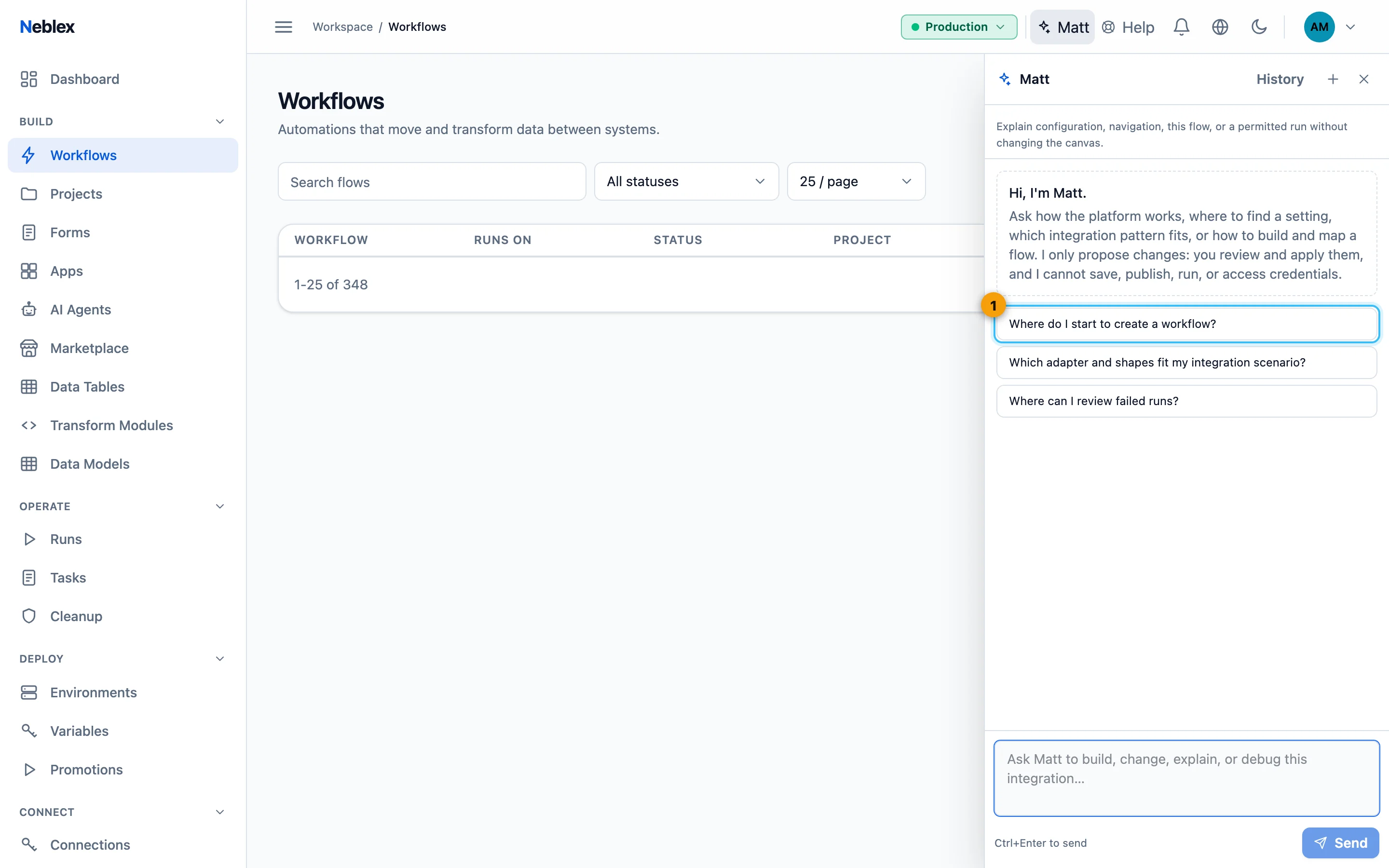
- Outside a flow, Matt explains and guides you to the right screen.
Three modes in the flow builder
| Mode | What it does | Try |
|---|---|---|
| Explain | Answers questions about configuration, navigation, this flow, or a run you may see. Never changes the canvas. | "Explain what this flow does, step by step." |
| Build flow | Proposes validated changes to this canvas. You apply them; saving and publishing stay separate. | "Build a webhook flow that validates and routes incoming records." |
| Fix failure | Reads the latest failed run you may see (the failing step, the cleaned-up error and the fields upstream steps produced) and proposes the smallest fix. | "Why did my last run fail?" |
A Build or Fix answer comes with Apply to canvas. Applying changes the canvas only; use Undo to take it back, then Save when you are happy. If you changed the flow in the meantime and the proposal no longer fits, nothing is changed and Matt asks you for a fresh request. When you are inside a Loop body, Build proposals go into that body.
Matt works with the adapters you may use and finds the right systems even when you don't name them: "notify the team" leads to a messaging system, "log a ticket" to your issue tracker. It cannot choose a connection or credential for you (changing an adapter clears its connection), and a single proposal is limited in size (up to 16 new steps).
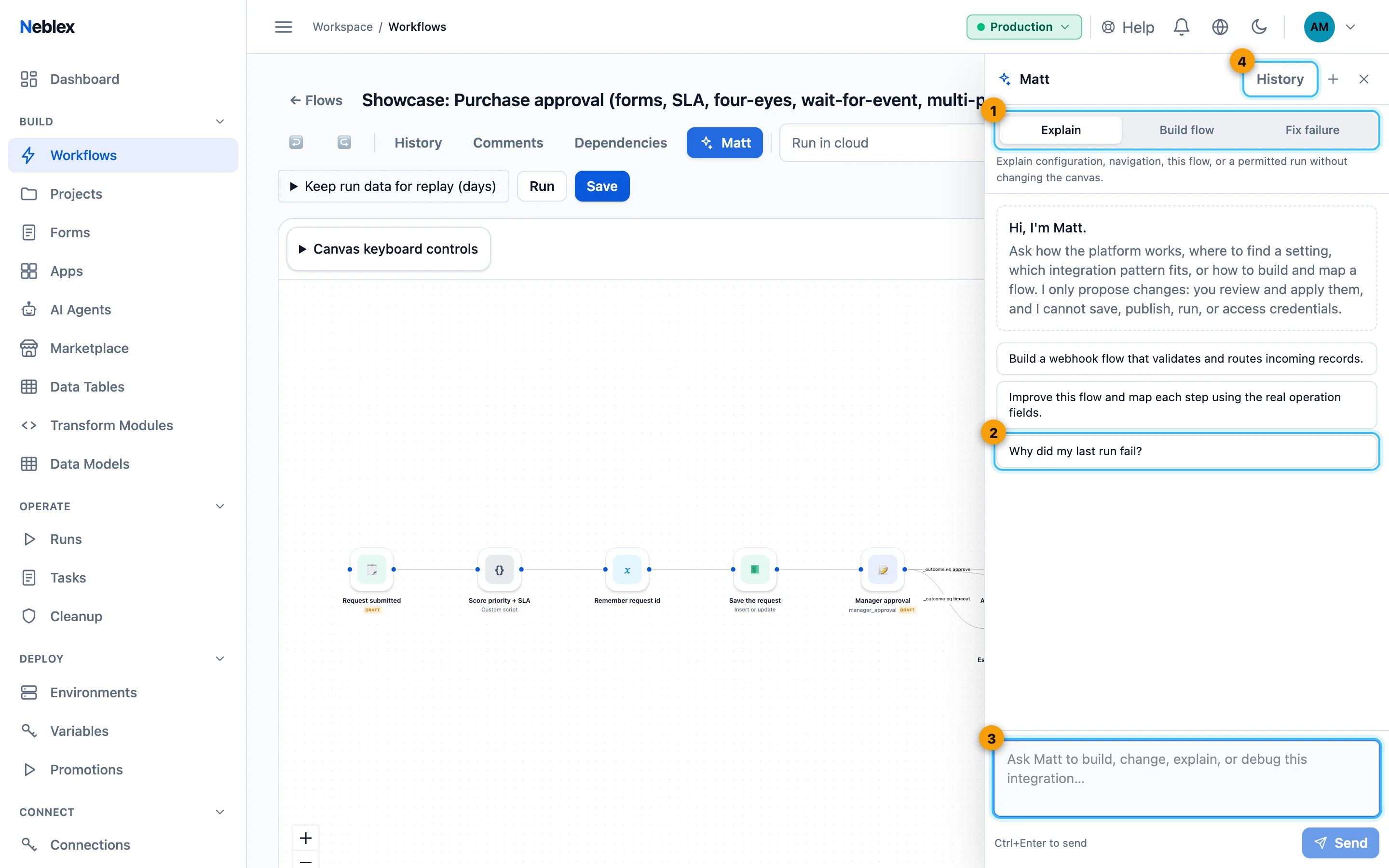
- Explain, Build flow or Fix failure.
- Starter requests to try.
- Ask in plain language; Ctrl/Cmd + Enter sends.
- Your earlier conversations; + starts a new chat.
Fix a failed run
When a test run fails, the failure banner offers Retry and Fix With Matt. Fix With Matt opens Matt in Fix failure mode with the failure already described. Typical fixes remap a step onto the field the previous step actually produced.
Ask about one step
In a node's detail view or in Transform Studio click Ask Matt. Matt explains what the step does, what data it receives and produces, and anything misconfigured or risky.
Let Matt configure a step
Many shapes have a Matt for card (for example Matt for Filter). Click Ask or configure, describe what the step should do, then Create validated draft. Matt shows the proposed settings and notes; Apply to this step puts them in place. Advice and drafts are limited to that one step.
Available on: Map fields, Transform items, Code, Loop, Data table, Filter, Sort, Keep first N, Remove duplicates, Lookup, Split, Set fields, Rename fields, Edit fields, Aggregate, Group & summarize, Error, Assert Data Quality, Build text, Format date, Convert JSON, Compress, Create Excel, Edit text, Scrape website, Render markdown, Create file, Read file, the EDI steps, Group into batches, Merge by key, Wait and Set value.
| Step | Example request |
|---|---|
| Transform items | "Create an output field named full_name by trimming and joining first_name and last_name." |
| Map fields | "Map the matching customer, email, and order-total fields into a clean output record." |
| Code | "Write per-record Rhai that normalizes the email and calculates total from quantity and unit_price." |
| Filter | "Keep only active records whose amount is greater than zero." |
| Group & summarize | "Group by customer_id and sum amount into total_amount." |
| Rename fields | "Rename customerId to customer_id and totalAmount to total_amount." |
| Data table | "Query only open records, return the customer and amount columns, and sort newest first." |
| Loop | "Repeat this body three times, keep its steps, and collect the output from each iteration." |
Matt needs real data to work with: run an earlier step first so Matt knows the fields, save the step before asking, and remove anything that looks like a secret from the step. Code drafts must compile and are checked against sample data; Data table drafts can configure Query rows or Describe columns on the table you already chose. Matt cannot change a step's shape or pick a table, connector or credential.
Map fields with Matt
- Run the upstream step once. The previous step must have produced output so its fields are known.
- Open the adapter step. Select the step and its operation.
- Click Map with Matt. Exact and common-name matches appear instantly; Matt proposes the rest and suggests a small expression where a conversion is needed (for example joining first and last name).
- Apply mapping. Review the mapped fields below, adjust anything, and save.
Your data stays private. Only field names and redacted type sketches are shared with the AI model, never the values in your records. Matt only suggests fields that exist upstream and parameters the operation really has.
Write an expression with Matt
In Transform Studio's formula area, describe the value ("Use email if present, otherwise 'unknown'") and press Generate expression. The result is tested on sample data; Apply expression puts it into the unsaved mapping so you can preview it before saving.
Build forms, apps and tables with Matt
Build with Matt is available in the Form builder, the App builder and the Create Data Table dialog. Describe what you want, click Generate draft, review the validated draft and click Apply draft. Applying replaces the current unsaved editor draft; it does not save, publish, run a flow or create the table until you do.
- Forms: new forms or changes to the current draft ("Build a customer intake form with contact details and a priority choice"). Choice options are fixed lists.
- Apps: under Resources Matt may use select up to eight existing Flows, Forms, Data Tables or published AI Agents. Matt can then wire tables, buttons and actions to exactly those resources ("Show open tickets from the selected table and add a button that runs the selected flow"). Only names and schema details are sent. Review every binding before saving.
- Data tables: new tables only ("Create an orders table with an external ID, amount, status, and timestamps"), with column types and unique or indexed columns.
Show me and walkthroughs
When an answer involves a screen, Matt can offer Show me (highlights that page in the sidebar) or Start walkthrough: a step-by-step overlay that highlights each control in turn, with Back, Continue and Exit walkthrough (or Esc). Walkthroughs exist for the procedures in this guide, such as creating a workflow, building a form or app, creating a data table, testing a connection, setting up SSO or promoting a flow. Matt only highlights; you do the clicking, and you only see walkthroughs for things your role and plan allow.
Good things to ask Matt
- "Where do I start to create a workflow?"
- "Which adapter and shapes fit my integration scenario?"
- "How do I promote a flow from Development to Production?"
- "How do I set up knowledge search for an agent?"
- "Add a filter after the trigger that drops records without an email."
- "Remove duplicates by customer_id before the destination step."
- "Which trigger should I use for a nightly file drop from SFTP?"
- "Wo fange ich an?" / "¿Por dónde empiezo?"
Matt Builder Assistant settings
Under Govern › Matt Builder Assistant (administrators) you decide which AI model Matt uses. These settings affect Matt only; your AI agents, knowledge search, apps and flows always use their own provider connections.
- Use your own model for Matt: off uses the platform's assistant model. On lets you choose a Provider (OpenAI, Anthropic, Mistral AI, Groq, DeepSeek, OpenRouter, xAI, or Custom OpenAI-compatible endpoint with an Endpoint for a gateway or a model inside your network), paste the API key (stored encrypted, never shown again) and pick the Model from the provider's live list.
- Matt monthly token budget: applies when Matt uses your own model. 0 means unlimited. When it is reached only Matt pauses until next month.
Every Matt request (a chat message, a mapping, a step draft, an expression or an artifact draft) also counts toward your plan's AI builds / month, shown under Usage & limits. When the limit is reached Matt says so; exact field matches in Map with Matt keep working. Matt requests are recorded in the audit log without their text.
Keep it in the building. With a custom endpoint for a model you run, Matt's prompts and answers go to that model instead of an outside AI provider.
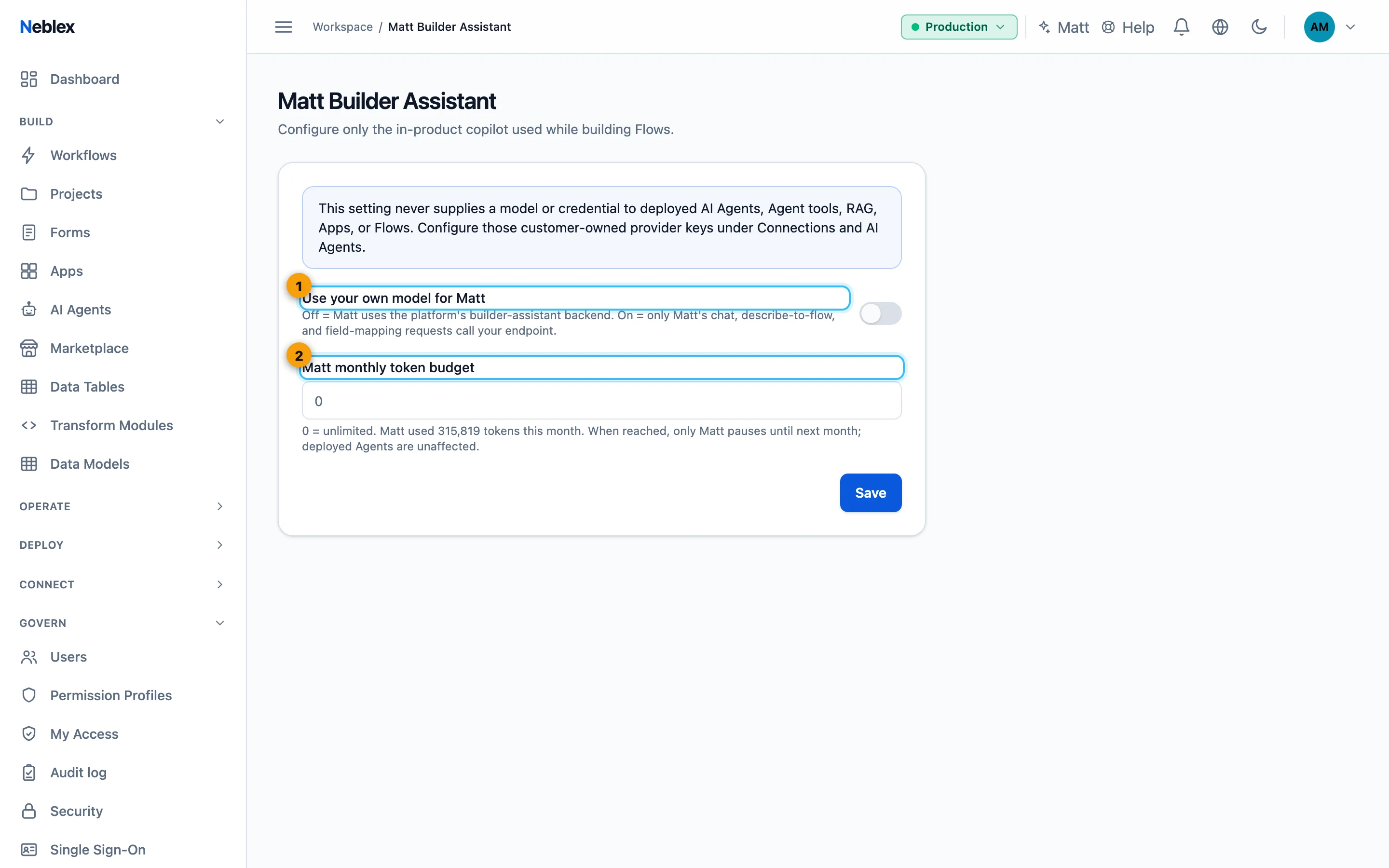
- Platform model, or your own provider and key.
- Cap Matt's monthly usage.