Build
Data tables
Data tables are simple tables inside your workspace for mappings, reference data, deduplication keys and state that must survive between runs. Flows read and write them; apps can show them directly.
Create a data table
- Go to Data Tables and click Create Data Table.
- Pick how to build it. From scratch, or Import CSV (the first row becomes column names; columns import as text).
- Define columns. Give each column a name and a type: Text, Number, Integer, Boolean, Date or Date & time. Tick Unique or Indexed for columns you match or search on.
- Work with rows. Open the table to add rows, edit cells inline, search, sort, page, import more CSV, download a template or delete rows.
createdAtandupdatedAtare tracked automatically.
Edit columns lets you Rename the table, add columns and remove columns (removing a column deletes its values permanently). Empty table removes all rows but keeps the columns. Build with Matt in the create dialog drafts a table from a description.
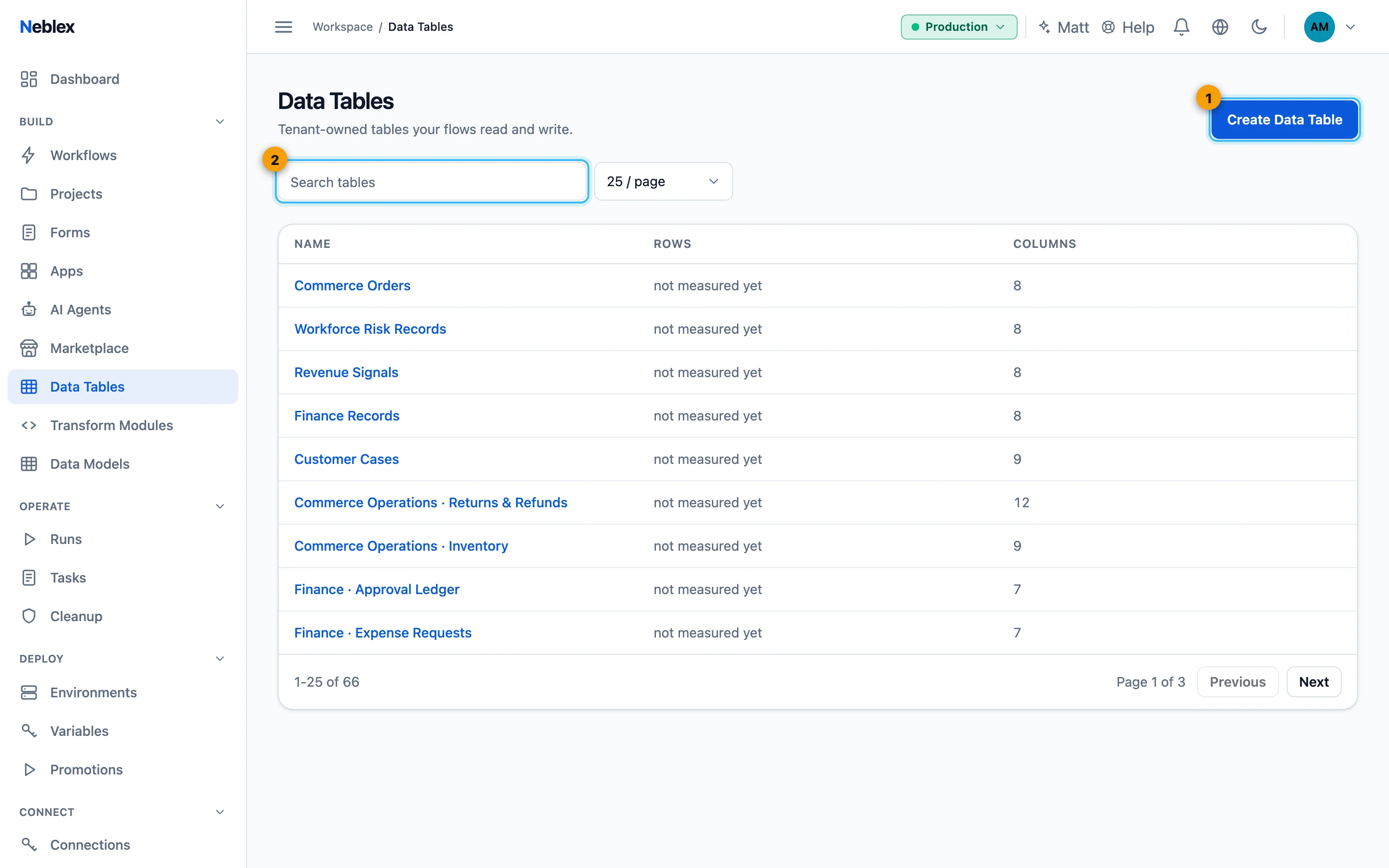
- Create Data Table: from scratch or from a CSV file.
- Find a table.
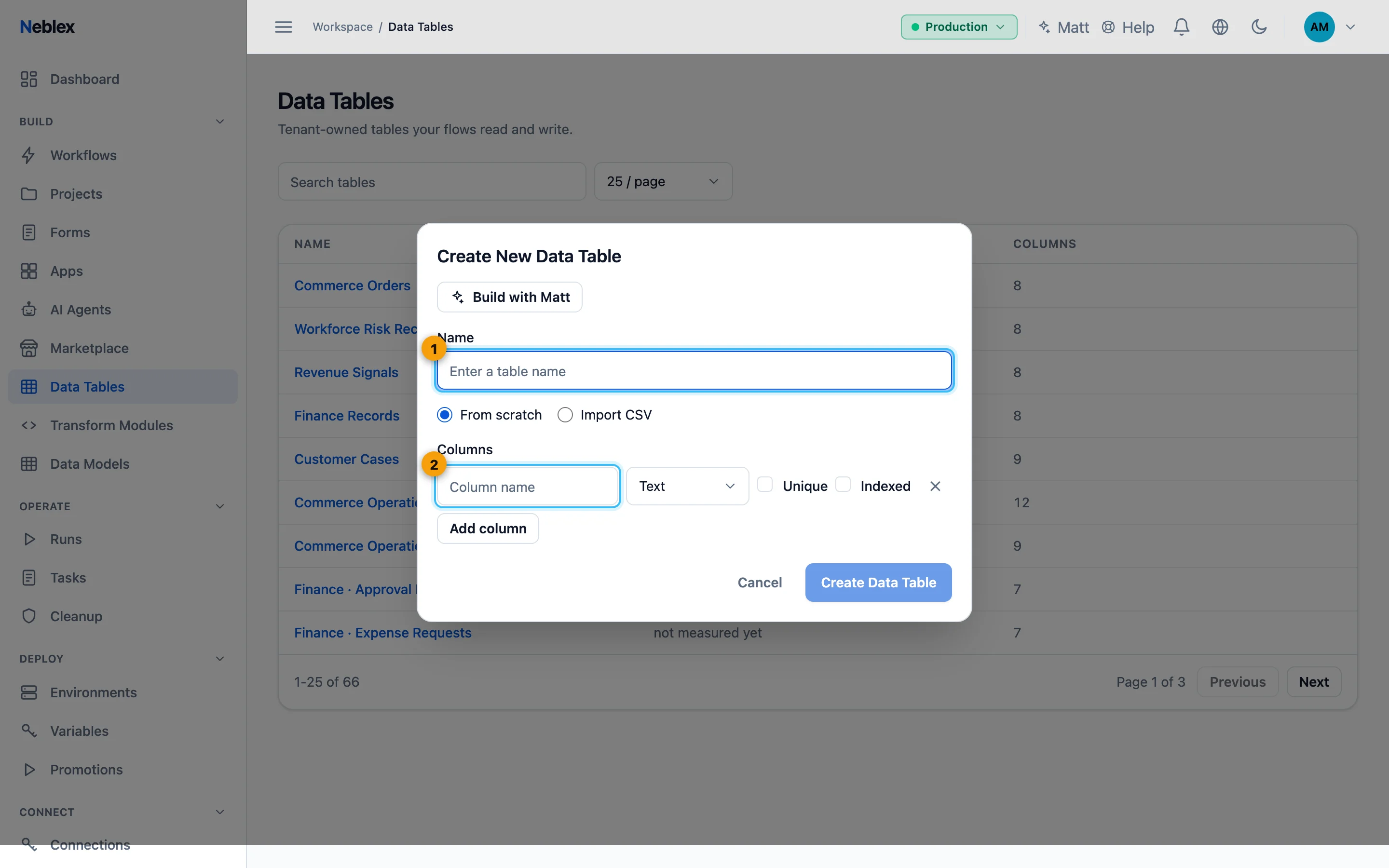
- Name the table.
- Each column: name, type, Unique and Indexed.
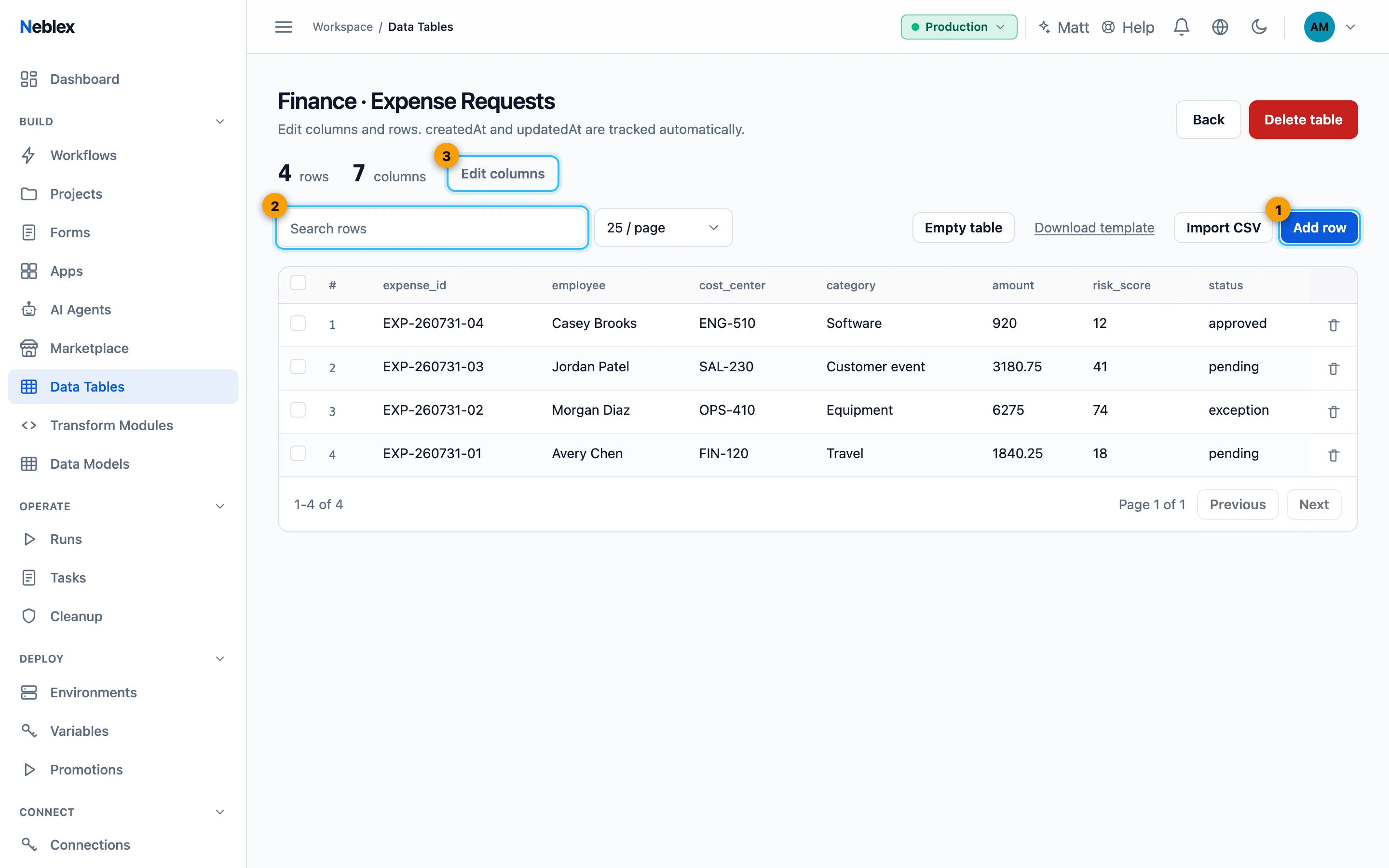
- Add rows; click a cell to edit it.
- Search, sort and page.
- Rename the table and add or remove columns.
Use in a flow
Add a Data table step, choose the table and an operation (Insert, Insert or update, Get, Update, Delete, List all rows, Query rows, Describe columns), set the Key column where needed and map the row values. See the Data table card.
Delete a table
Deleting a data table is permanent. Its columns and every row are erased; it does not go to Trash and cannot be restored. The dialog asks you to type the table name. Export what you need first.