Connect
Connections
An adapter knows how to talk to a kind of system. A connection holds your credentials for one account of that system. Flows, agents and apps choose a connection by name; its secrets are encrypted at rest, used only at the moment a step needs them, and never shown again.
Add a connection
- Open Connections under Connect and click New Connection.
- Choose an app to connect to. Search the catalog (databases, file servers, SaaS apps, AI providers and hundreds more).
- Fill in the details. Give it a clear Name (for example Salesforce production) and fill the fields the system needs: host, port, database, user, password, token and so on. For systems that require client certificates open Client certificate (mTLS) and paste the certificate, key and optional CA certificate.
- Test before saving. Choose Test from (the cloud, an On-Prem Worker or a cluster, depending on where the system is reachable) and click Test. For adapters without an automatic check use Test with operation and pick a harmless read operation.
- Create Connection. When editing later, leave a secret field blank to keep the stored value.
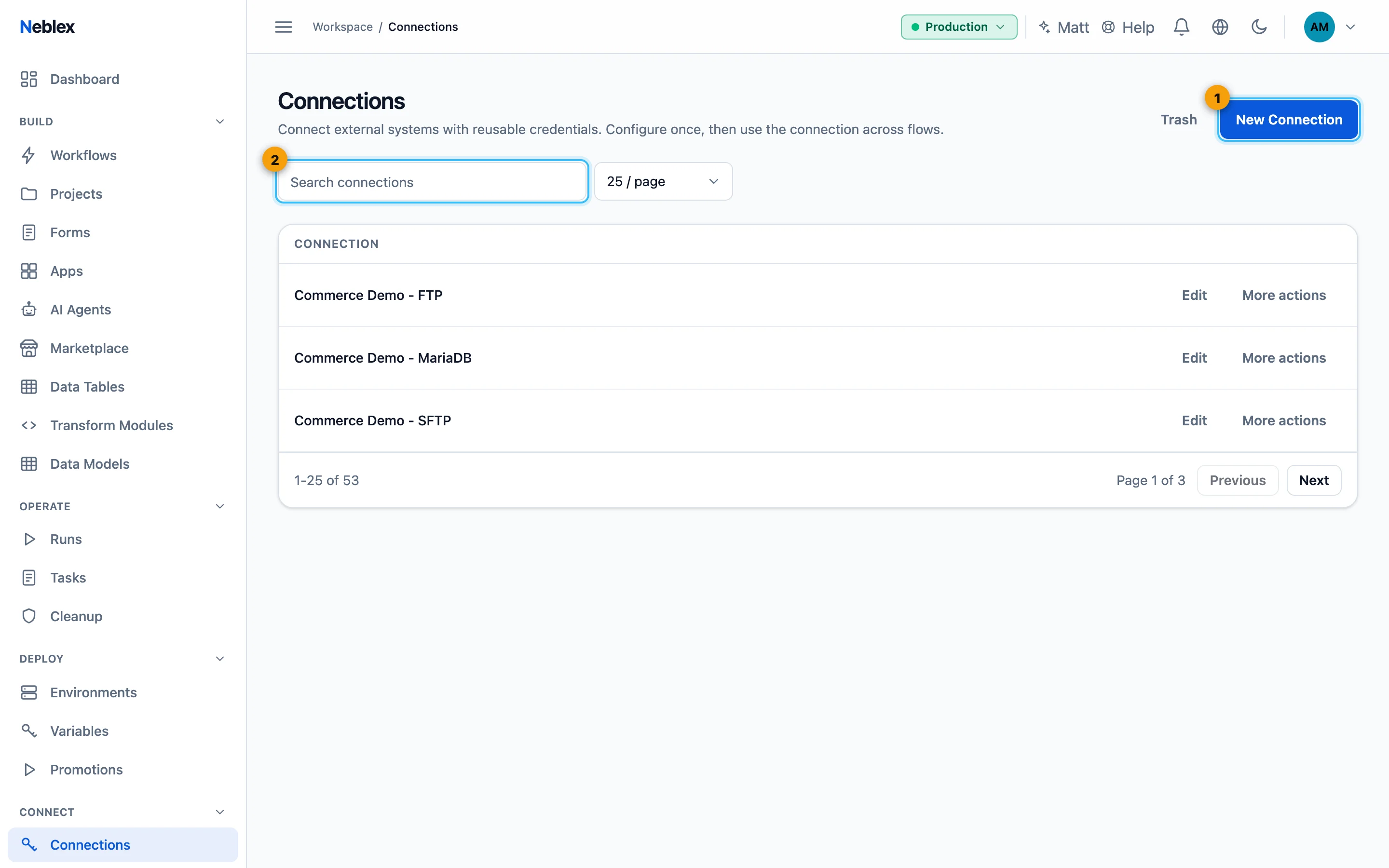
- New Connection.
- Find a connection. Each row has Edit and More actions (Test, Reconnect, Revoke, Delete).
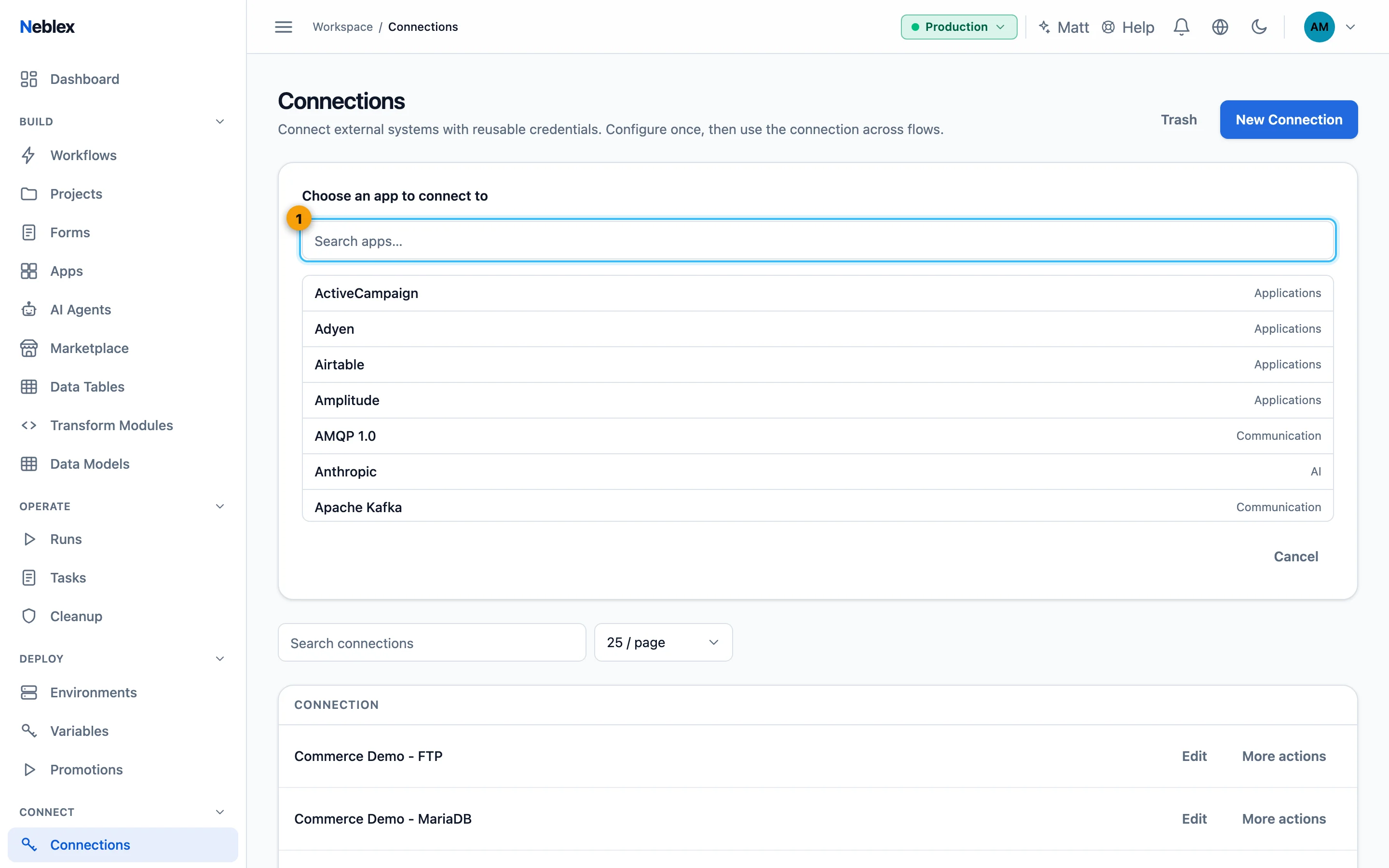
- Choose the system; its fields, mTLS options and Test from appear next.
Test a connection
- Find the connection in the Connections list.
- Click Test in its menu. The platform makes a real read-only call and shows ok or the system's actual error message, with any sensitive values masked.
Authorize with OAuth
For popular services, Connect a Service needs no app registration of your own:
- Click Connect a Service on Connections and choose the service.
- Choose the scope. Connection scope: shared across the workspace, or one project.
- Authorize. Click Authorize, approve access in the provider's window, and the connection is created. A service marked Not enabled can still be connected with your own OAuth app (below).
To use your own OAuth app, choose Connect with OAuth2: copy the shown Redirect URI into the provider's app settings, then enter the app adapter, name, scopes, Authorize URL, Token URL, optional Revoke URL, Client ID, Client secret and Token endpoint authentication (HTTP Basic or form body). OAuth connections have Reconnect (sign in again) and Revoke in their menu.
The Connections list
Badges show connections that Need Secret (created without one, for example by an import) and Generic ones not tied to a specific app. Row actions: Edit, Test, Reconnect, Revoke, Delete (to Trash after a usage check).
SSH authentication and sudo
An SSH connection uses a username with a password, or with a private key (and optional passphrase). For operations that need elevation, add the sudo password; root and accounts with passwordless sudo leave it blank. Only operations designed for elevation use sudo, and the password is never placed in a command or log.