Govern
Download & enroll an On-Prem Worker
- Enroll. On On-Prem Workers click Enroll On-Prem Worker. Enter a name (for example Datacenter-1), an optional description, and the Execution target: an individual Worker or a cluster to join. It appears as Pending.
- Download. Choose the machine's operating system and click Download: macOS (Apple silicon only), Linux on x86-64, Linux on Arm (64-bit), or Windows (x86-64). On Linux, pick the build for the machine's processor; libraries the Worker loads, such as database drivers, must be built for the same processor. The download is the same signed program for every Worker and holds no secret.
- Get an enrollment code. Click Enrollment code on the Worker. The code is shown once, works once and stops working after 15 minutes.
- Run it. Start the downloaded program on the machine in a terminal and paste the enrollment code when asked. The Worker enrolls and waits for your approval.
- Approve the machine. On the Worker, check the host name, operating system and address it shows, then click Approve machine. The Worker turns Active with live CPU, memory and job figures. Restarts reconnect on their own and ask for nothing.
xattr -c ./neblex-onprem-worker   (macOS only)
chmod +x ./neblex-onprem-worker
./neblex-onprem-workerOn Windows, run the downloaded neblex-onprem-worker.exe. The examples in this guide use the macOS and Linux name; on Windows use the .exe file instead.
At every start, before it runs anything, the program checks itself against the signed statement of its release. A program that differs from the published release, or that is not a published release, refuses to start.
To run a second Worker on the same machine and user account, start it with its own name, for example ./neblex-onprem-worker --instance second, and enroll it with that Worker's code.
To see everything the program can do, run it with --help (on Windows also /?), for example ./neblex-onprem-worker --help. Add a command name for that command's options and examples, for example ./neblex-onprem-worker help control, or help cluster for the cluster commands. The help also shows the address of this Worker's local control page. Start the Worker with --debug for a more detailed log.
The Neblex Terms of Service govern the On-Prem Worker. Its third-party and open-source parts stay under their own licences, and the Terms do not restrict those rights. To read their notices and where to get their source, run it with third-party-notices, for example ./neblex-onprem-worker third-party-notices.
Approve only machines you set up. The enrollment code is the only thing that travels, so a Worker gets no work until a person approves the machine that used the code. If you do not recognise the machine, click Refuse and issue a new code.
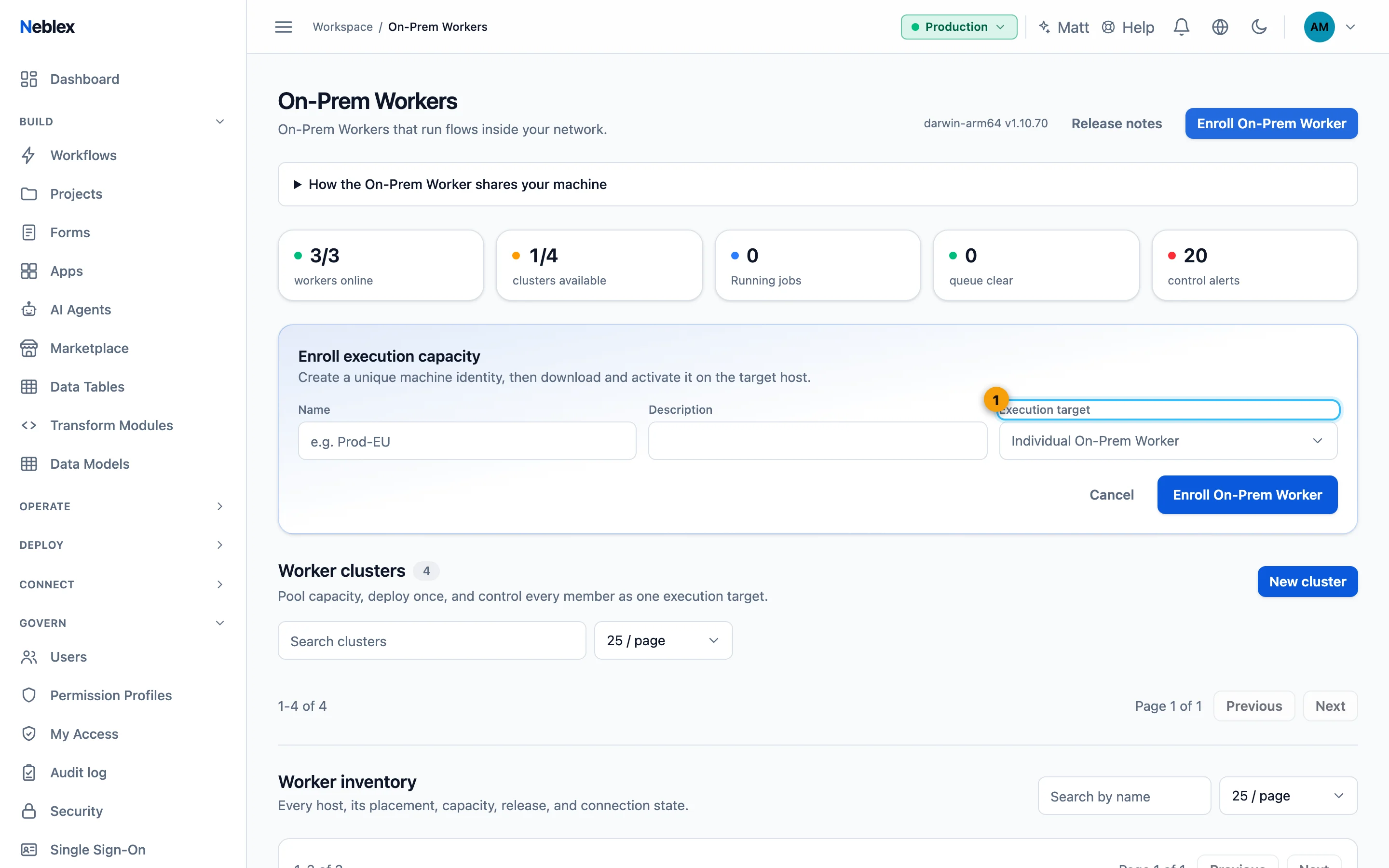
- Name the Worker and choose standalone or a cluster; then download it and get its activation code.
Updating
Workers never update themselves. To move to a new release, stop the Worker, replace the program with the new download and start it again; it keeps its enrollment. Update a Worker while its machine can reach Neblex: the first time a new release starts, it fetches that release's signed statement from Neblex and runs no work until it has it.
Firewalls and allow-lists
- macOS: every release carries the same code identity, so a firewall rule or permission you gave the Worker once keeps working after an update.
- Windows: the program names itself Neblex On-Prem Worker in prompts, rule lists and file properties. Windows Defender Firewall rules follow the program's location, so keep the program in the same folder when you replace it.
- Linux: firewalls match ports, not programs. A tool that allows programs by location or checksum needs the new file allowed after an update.
Managing On-Prem Workers
| Action | What it does |
|---|---|
| Open control | Live resources (CPU, memory, cores, budgets, network), identity and placement, and tabs for its flows, recent runs and reserved runs. |
| Enrollment code | Issue a one-time code to enroll the Worker. A new code replaces an unused one. |
| Approve machine / Refuse | Let the enrolled machine get work, or turn it away so it never connects. |
| Enroll on another machine | Move an enrolled Worker to a new machine: its current machine stops connecting when the new code is used. |
| Renew security keys | The Worker makes new security keys and receives new credentials on its next connection, and keeps working. Workers also renew on their own before their keys expire. |
| Replace local keys | The Worker makes new keys for everything it keeps on its machine, seals all of it again and destroys the old keys. Runs keep going. |
| Block / Unblock | Instantly refuse the Worker and drop its connection, or allow it again. |
| Confirm machine stopped | Offered for a disconnected Worker, standalone or cluster member. Confirm only when you know its machine is shut down: its unfinished runs end with an unknown outcome, and in a cluster the other members take over its flows. If the machine starts again, the Worker reconnects and works as before. |
| Deregister | Permanently revoke the Worker's identity. It stays in the list as Revoked. |
| Delete | Revoke the Worker and remove it from the list, whatever its state. Its history stays in the audit log. See Removing a Worker. |
| Placement | Required locality, resource class and labels that decide which work it accepts. |
Under Security and release settings:
- Change connection address changes the private address your Workers connect to. Connected Workers take the new one right away, the others when they next connect. The old address keeps working for a limited time until every Worker has the new one; the page shows until when and how many Workers still use it. Stop the old address now ends it at once: Workers that have not taken the new address can no longer connect and need a new enrollment code.
- Renew every Worker's security keys and Replace every Worker's local keys do the same as the Worker actions above, for every Worker of the workspace.