Govern
Users
1 min readOpen in Neblex
Govern › Users lists everyone in the workspace with their role, status (Active, Invited, Suspended), skills and presence (online, open tasks, away until).
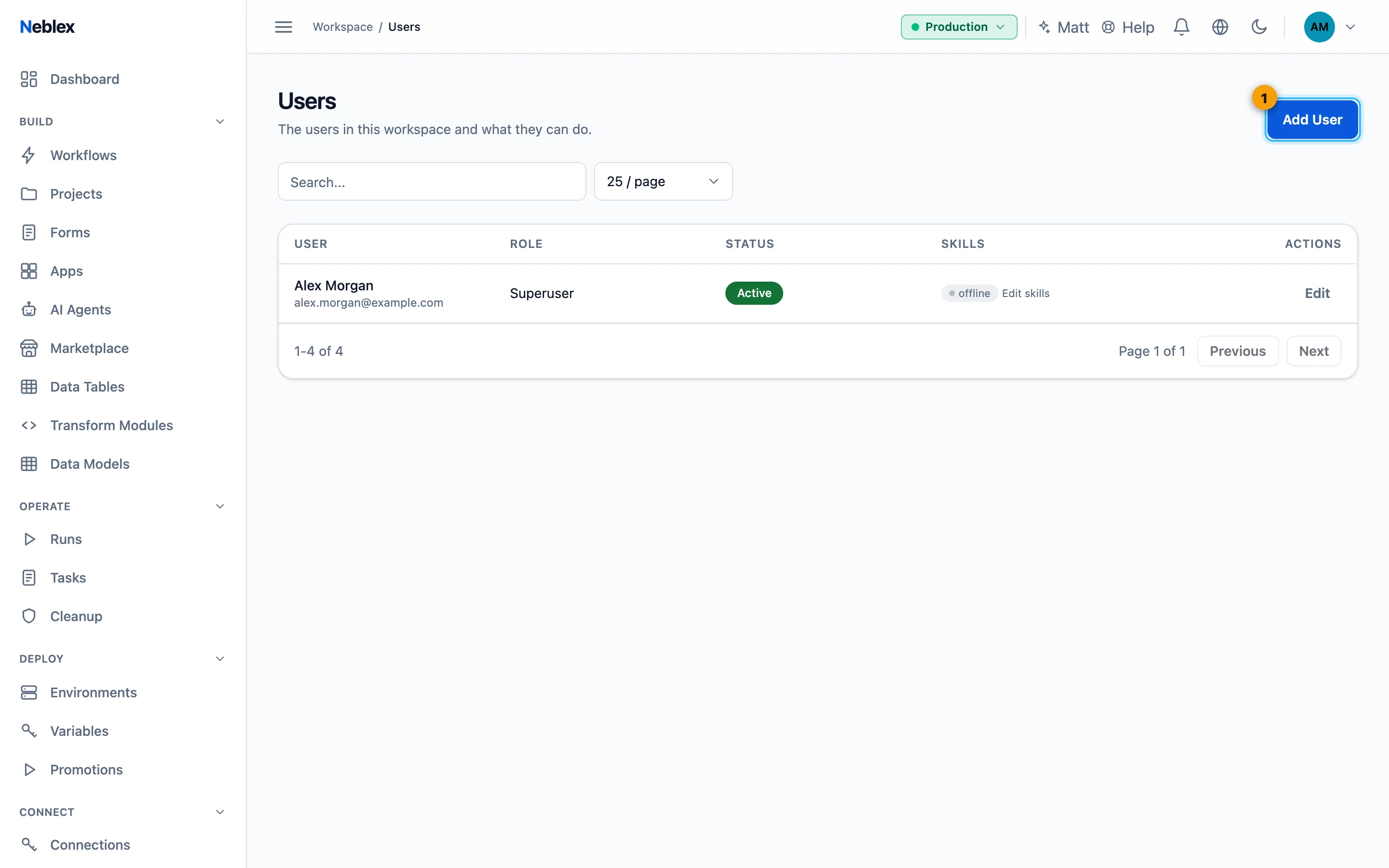
- Invite someone.
Invite a user
- Click Add User.
- Enter details. Name, email and Role.
- Send invitation. The person receives an email to set their own password and join.
Manage users
- Role: change it from the dropdown on the row (built-in roles and your custom profiles).
- Skills: Edit skills to tag people for task routing (for example
german,refunds). - Edit changes the name. The menu offers Send reset link, Resend invitation, Recover account (removes the person's passkeys and two-factor, signs them out everywhere and emails a reset link, for someone who lost their device), Activate / Suspend, and Remove from workspace.
Workspace roles
Roles are the built-in permission profiles. Each can be tailored under Permission Profiles; these are the product defaults.
| Role | Build & run flows | Connections | Encryption keys | Settings & API keys | Users & profiles | Audit log |
|---|---|---|---|---|---|---|
| Superuser | Manage | Manage | Manage | Manage | Manage | View |
| Owner | Manage | Manage | Manage | Manage | View | View |
| Admin | Manage | Manage | No | Manage | View | View |
| Editor | Author and run | Use and view | No | No | No | No |
| Operator | Run only | Use and view | No | No | No | No |
| Viewer | View only | View | No | No | No | No |
| Auditor | View only | No | No | No | No | View |
Only a Superuser manages user security. Only a Superuser invites and removes users, resets passwords and second factors, assigns roles and edits permission profiles. Owners and Admins run the workspace but cannot touch anyone's credentials, so an administrator can never silently take over another account. The first user of a workspace is its Superuser.