Govern
Security, SSO & SCIM
2 min readOpen in Neblex
Security policy
Govern › Security sets the rules for everyone in the workspace:
| Setting | What it does |
|---|---|
| Minimum length | At least 12 characters. |
| Minimum uppercase / lowercase / numbers / symbols | 0 means not required. |
| Block compromised passwords | Rejects passwords known from public breaches. |
| Password expiry (days) | 0 means never. |
| Prevent reuse of last N passwords | Stops recycling old passwords. |
| Multi-factor authentication | Off, Optional, or Required for everyone (people without a second factor must enroll at next sign-in). |
| Allow authenticator apps (TOTP) | When off, only passkeys count as a second factor. |
| Minimum passkeys to enroll | 0 to 5 per user. |
| Who can access public entry points | Inbound Access for public webhooks, forms, apps and agent chats: Anyone (public) or Private (internal only), with optional Allowed IPs / CIDRs. Individual flows can override it. |
Each person manages their own two-factor, passkeys and sessions under My profile. Sign-ins from a new device can require approval by email.
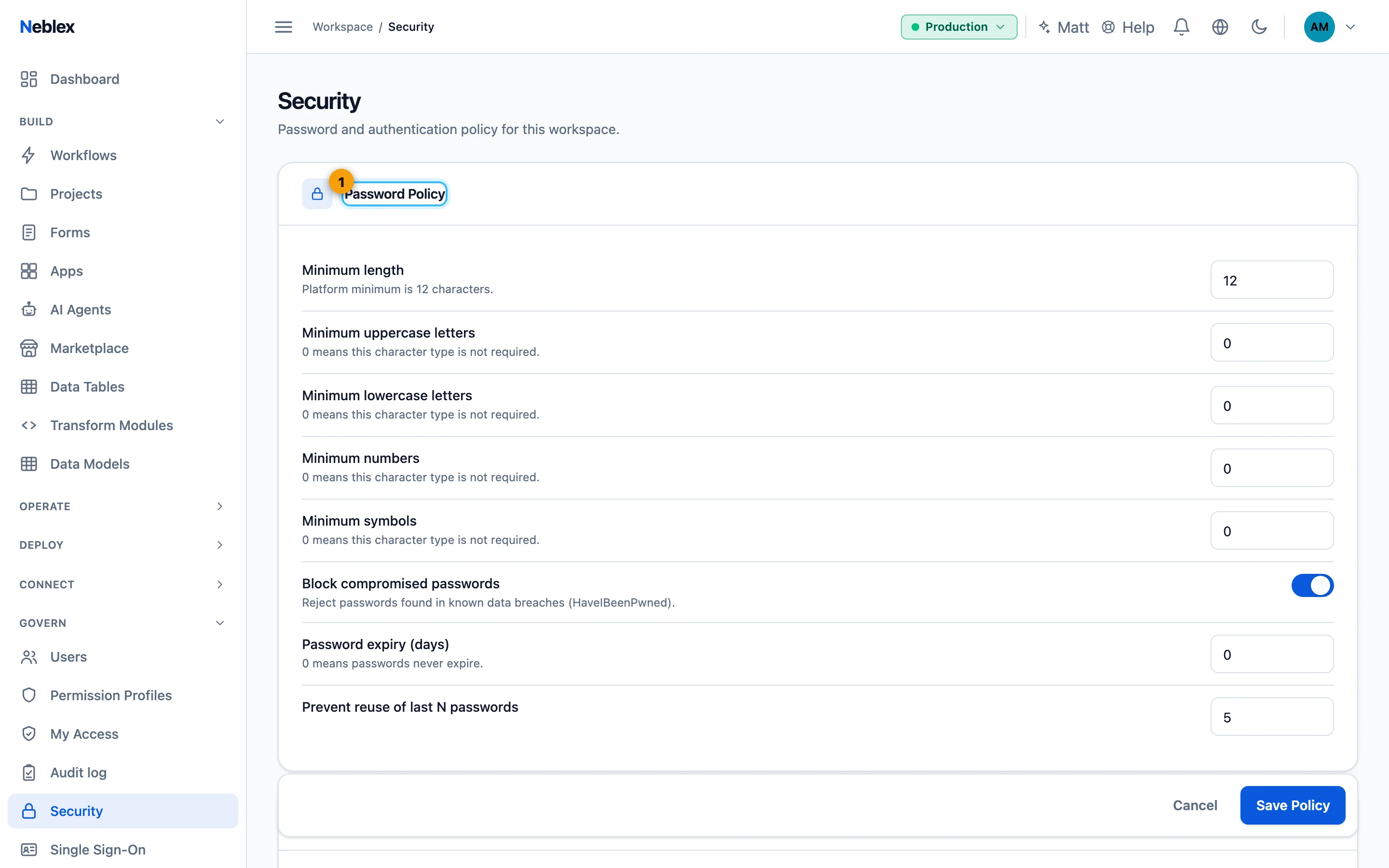
- Password rules.
Single sign-on: SAML or OpenID Connect
- Open Single Sign-On under Govern and click Edit.
- Pick the protocol. OpenID Connect (with presets for Microsoft Entra ID, Google Workspace, Okta, Auth0, Keycloak, Amazon Cognito, OneLogin and Ping Identity) or SAML 2.0.
- Enter your provider's details. OIDC: issuer URL, client ID, client secret; copy the Callback URL into your provider. SAML: Import From Metadata (URL or XML) or fill the IdP entity ID, sign-on URL and signing certificates; copy the Service Provider Details (entity ID, ACS URL, metadata URL) into your provider. Optional: allow IdP-initiated sign-in, force re-authentication, NameID format and authentication context.
- Activate. List your Email domains, turn on Enable single sign-on and Save.
SSO signs in existing members. People at the listed domains authenticate with your provider. It never creates accounts by itself; use invitations or SCIM for that.
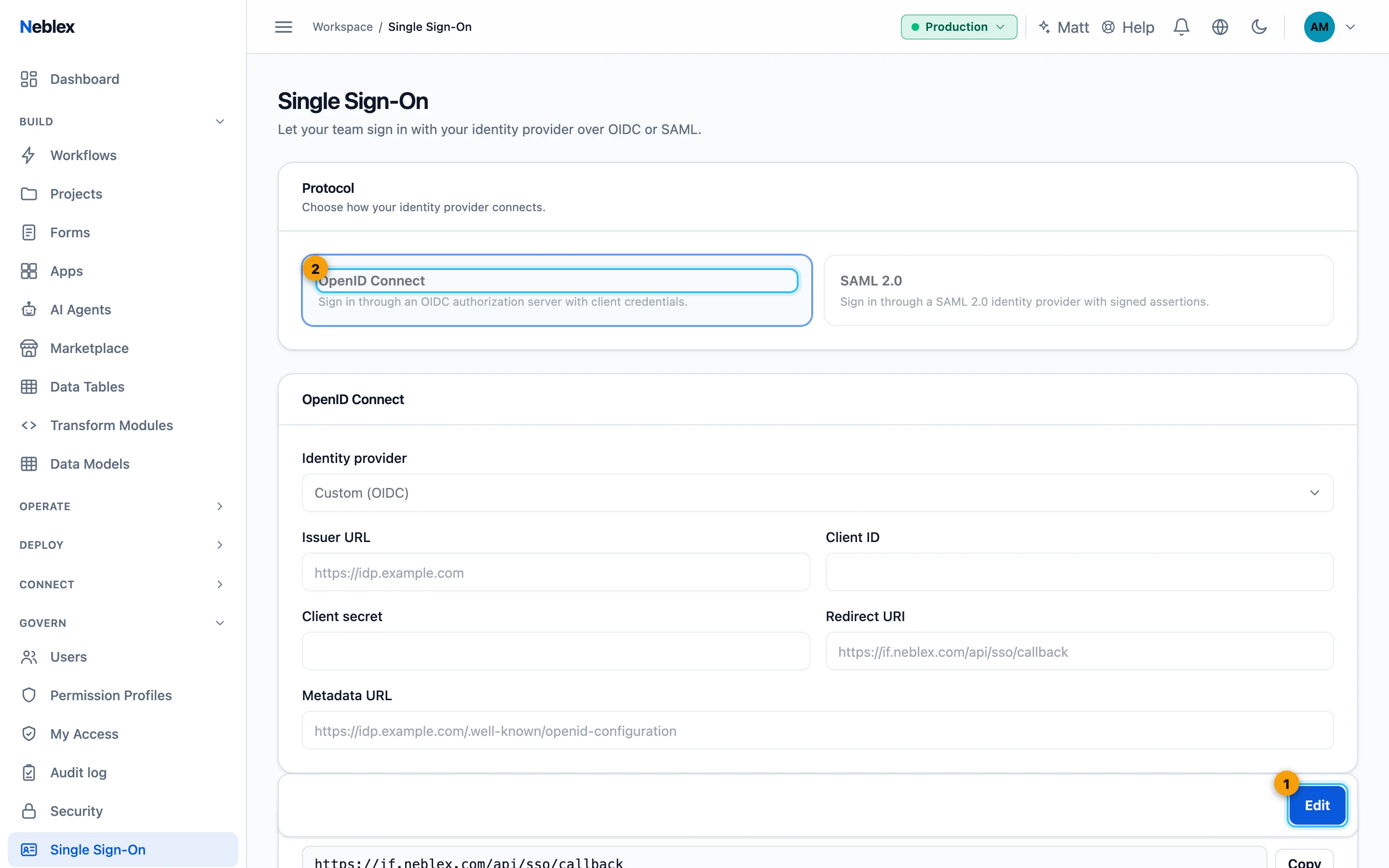
- Edit to change the configuration.
- OpenID Connect or SAML 2.0.
Automatic user provisioning (SCIM)
- Generate a token. On the Single Sign-On page under SCIM Provisioning, give the token a name, an expiry (up to 366 days, default 90) and optionally the source IPs allowed to use it, then Generate Token. Copy it now; it is shown once.
- Configure your identity provider. Enable SCIM provisioning (Okta, Entra ID and others), enter the SCIM Base URL shown on the page and paste the token.
SCIM adds, updates and deactivates members as people join and leave; deactivation signs them out everywhere at once. It never grants the highest administrative roles or project access. The token list shows prefix, created, expiry, last use and status, with Revoke.