Start here
Getting started
1 min read
Access to a workspace is by invitation. Your administrator creates your account and you receive an email with a link to set your password.
- Accept your invitation. Open the link in the invitation email, choose a password that meets your workspace's password policy, and click Set password and join.
- Sign in. On the sign-in page enter your Workspace name, Email and Password, then Log in. If your organization uses single sign-on, choose Sign in with SSO; if you registered a passkey, choose Login with Passkey.
- Complete the second factor. If your workspace requires two-factor authentication you are asked to set it up before continuing: scan the QR code with an authenticator app (or register a passkey) and enter the code. Keep the recovery codes somewhere safe. A sign-in from a new device may also ask you to approve that device from an email link.
- Find your way around. The left sidebar starts with Dashboard, then groups the app under Build, Operate, Deploy, Connect and Govern, with Workspace at the bottom. See A tour of the app.
- Connect a system. Open Connections and add the credentials for a system you want to use. See Connections.
- Build and run a flow. Open Workflows, create a flow or install a template, press Run, and watch each step in Runs. The self-training course walks you through this.
Forgot your password? Choose Forgot password? on the sign-in page to receive a reset link. If you are locked out of your second factor, ask a workspace Superuser to use Recover account for you.
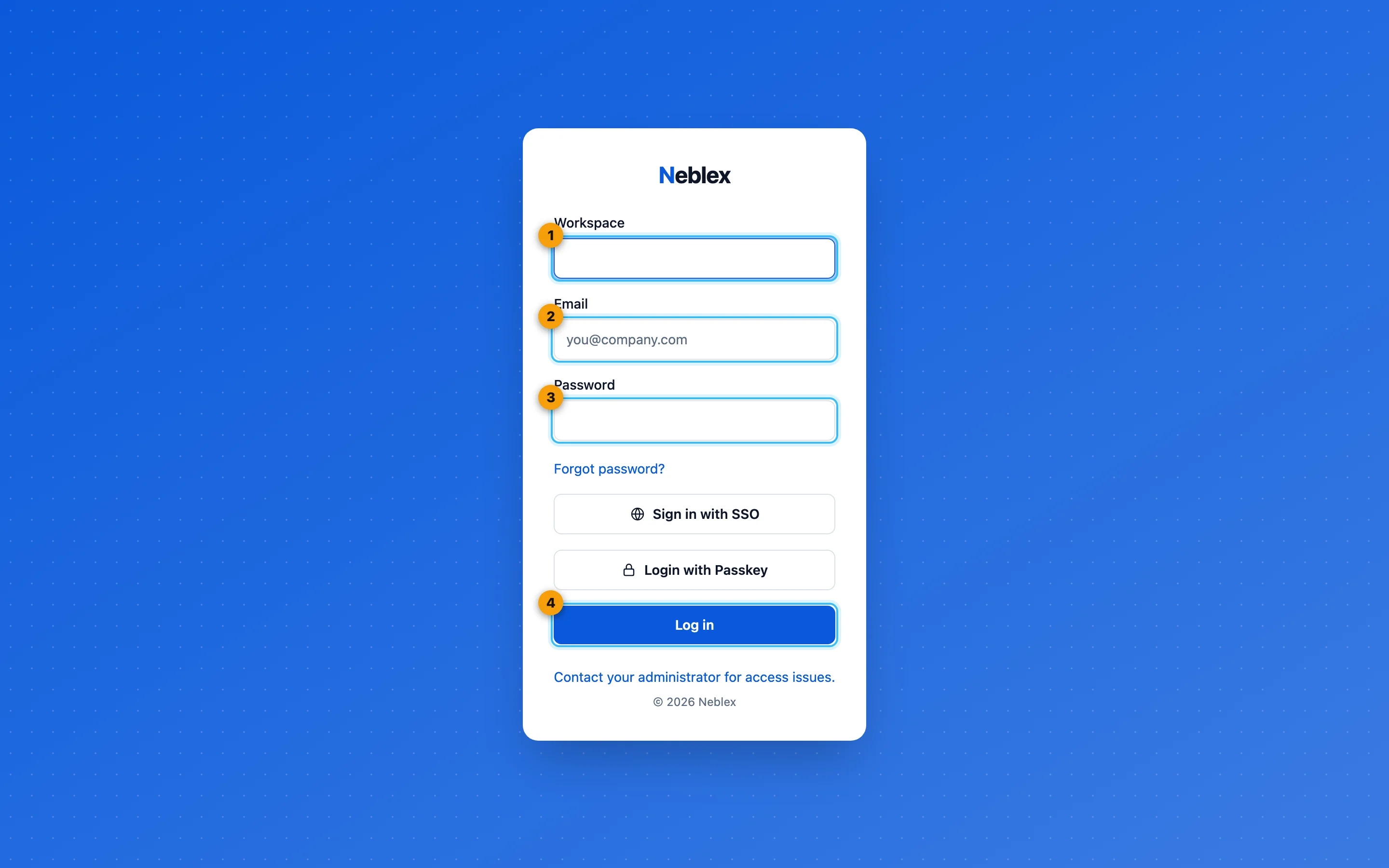
- Your workspace name, from your invitation email.
- The email address you were invited with.
- Your password.
- Log in. Single sign-on and passkey sign-in are offered below.