Operate
Human tasks & approvals
Every time a flow pauses on a Wait for form step it creates a task. People without an account work tasks through emailed links; workspace members also use the Tasks page.
People without an account (emailed links)
- They receive an email the moment the flow reaches the task, with a private link to their task.
- They review the pre-filled data and submit, or press a decision button. No sign-in and no account.
- The link is private, expires and renews itself while the task is open. It works on a phone.
People in your workspace (the Tasks list)
- Open Tasks. Choose Operate › Tasks. The Queue view has tabs To do, Completed and Canceled; filter Assigned to me or all tasks, search, and Save view to keep a filter set.
- Pick up work. Work next opens the most urgent task for you; Claim takes a pooled task so nobody else works it; Snooze 4h hides it for a while (the SLA keeps running).
- Open and complete. Open shows the pre-filled form. Submit, and the flow continues.
You only see tasks from projects you can access. The Dashboard view shows task KPIs, a queue forecast, backlog by flow and load by person.
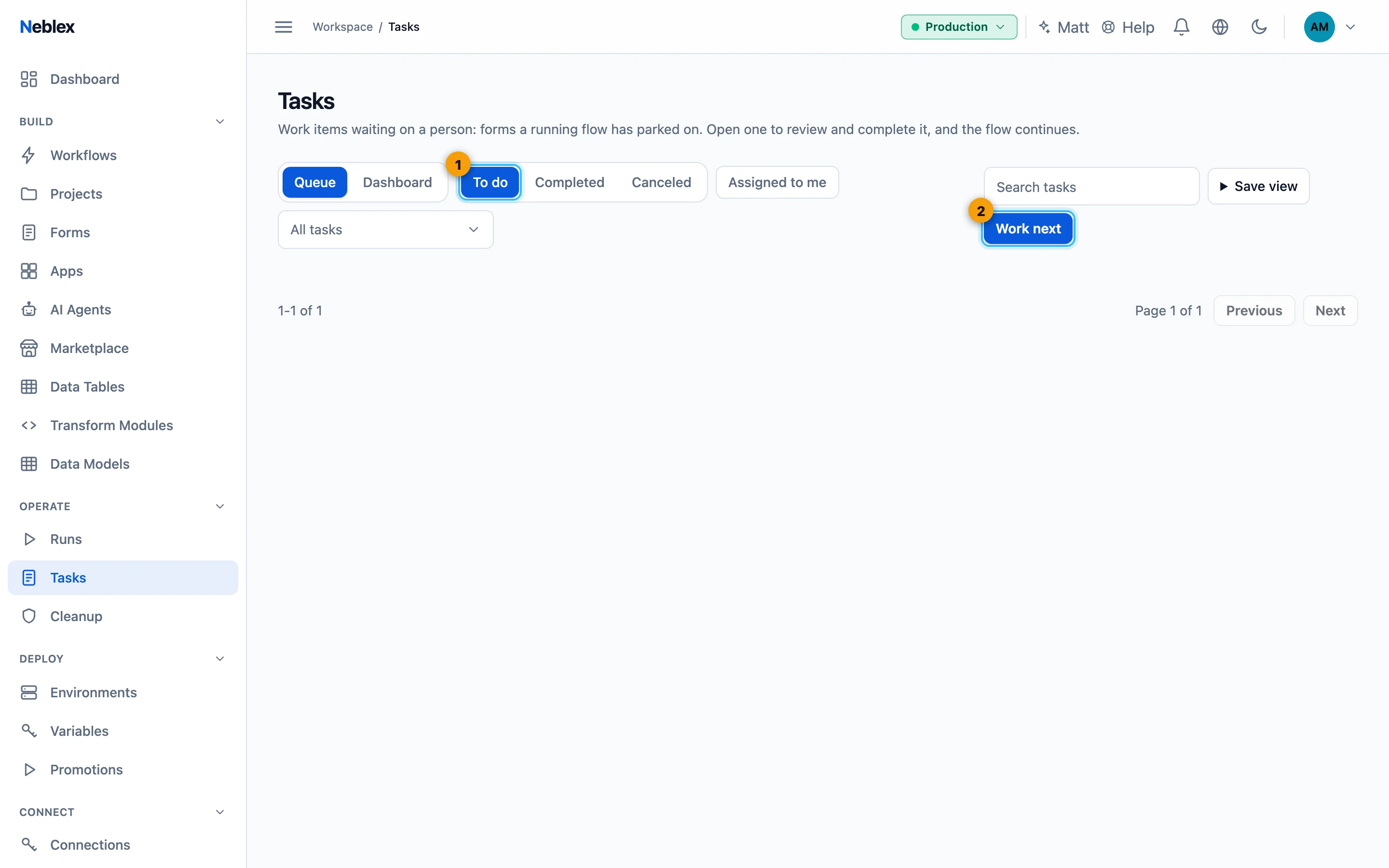
- To do, Completed and Canceled.
- Open the most urgent task for you.
Priorities, due dates & SLAs
On the Wait for form step set a Priority and Due in (minutes). Tasks sort by urgency and show Due in... or Overdue. Under Workspace › Business hours turn on Count task deadlines in working hours and set the time zone, working days and hours: a four-hour deadline started on Friday afternoon then lands on Monday morning.
Auto-escalation & timeouts
- Escalation flow: when a task passes its due time, the chosen flow runs with the task's details, for example to notify a manager. Recipients also get an overdue reminder.
- Timeout (minutes): if nobody acts in time the step finishes on its own with
_outcome=timeout; branch on it to auto-deny or hand off.
Who can work a task (routing)
- Who may work this (emails): only the listed people.
- Required skills: only members with those skills (set per user under Users).
- Assign automatically: Round robin or Least busy assigns each new task to one person; No - shared pool leaves it for anyone allowed to claim.
Members who set Out of office in their profile get no task emails and are skipped by automatic assignment; Task capacity limits how many open tasks can be assigned to them at once. People whose permission profile allows Edit on Runs and tasks can reassign or release other people's tasks.
Four-eyes (separation of duties)
Turn on Different person must decide and the person who started the run, or who decided an earlier step of it, cannot decide this one. A requester can never approve their own request, and a two-step approval needs two different people.
Working many at once (bulk actions)
Select several tasks and use Claim selected, Apply decision, Reassign, Release selected or Set field (fix one field across many tasks). Each task is validated on its own and you get a result per task.
History & audit trail
Every task keeps its activity: claimed, released, reassigned, decided, edited, escalated, with who and when.
Waiting for an outside event
Use Wait for event when a run should wait for something other than a person, keyed by a correlation value such as an order id. See the Wait for event card for how the event is delivered.