Build
The flow builder
Open Build › Workflows to see every flow in the current environment. Search by name, filter by status (Draft, Active, Disabled) and page through the list. Each row shows where the flow runs (cloud or an On-Prem Worker), its status, project and when it changed.
| On the Workflows page | What it does |
|---|---|
| New Workflow | Creates an empty flow and opens the builder. |
| Start from Template | Installs a complete example. See Templates. |
| Import | Imports an exported flow file. See Import & export. |
| Trash | Deleted flows; Restore brings one back. |
| Status (per row) | Change a flow between Draft, Active and Disabled. Only an Active flow reacts to its webhook, schedule, poll, stream or form. Drafts are tested with Run. |
| Row actions | Open, Run, Health (success rate, durations, failure reasons), Export, Delete. |
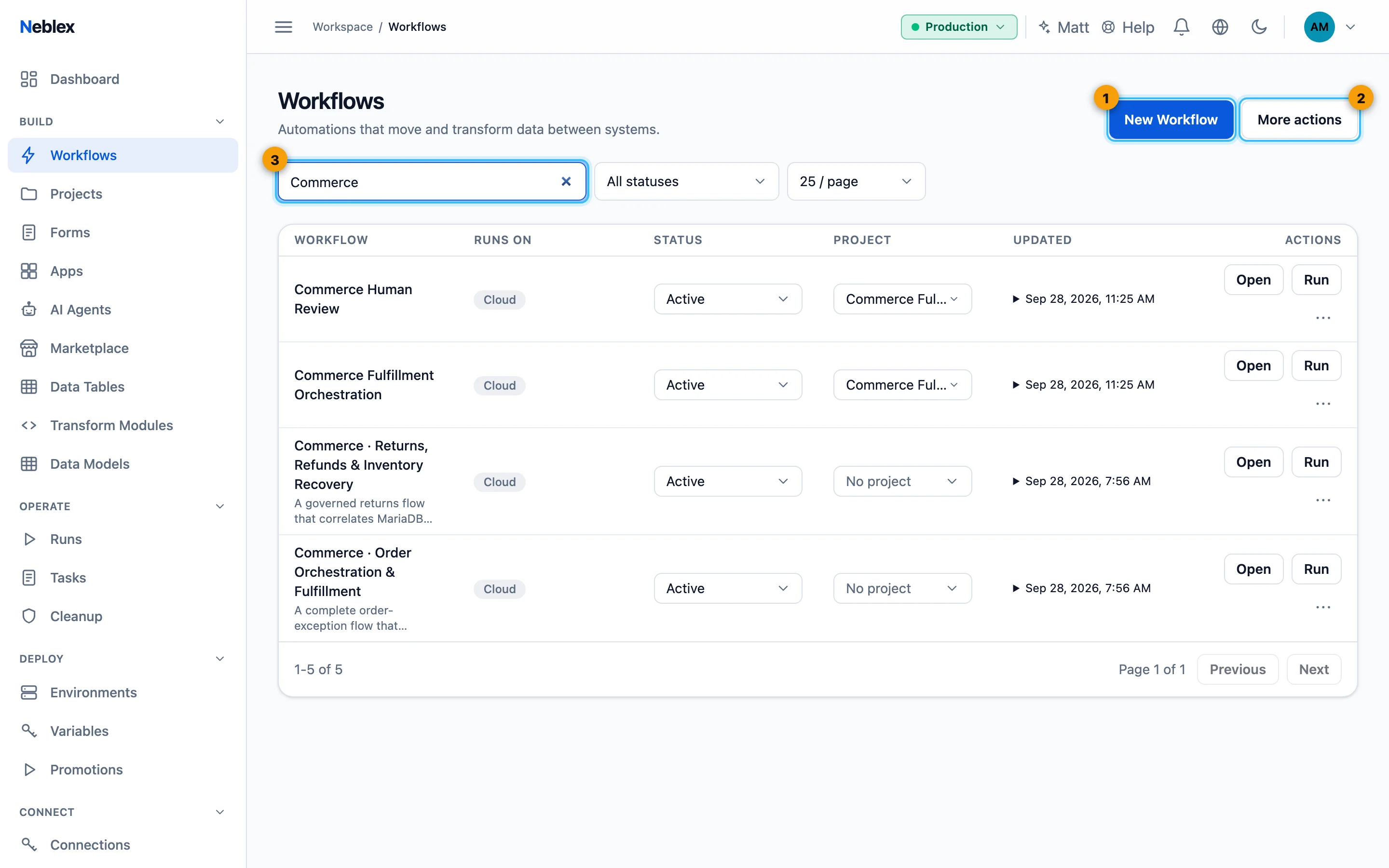
- New Workflow starts an empty flow.
- Start from Template, Import and Trash.
- Search, filter by status and page through your flows.
The canvas
A flow is a canvas of nodes joined by edges. Data enters at the trigger and travels left to right. Each node has one input on the left and one output on the right.
- Add a node: open Nodes (the node library), search or browse the groups Triggers, Logic, Transform, Data, Files, AI and Code, then click to add or drag onto the canvas. Adapters for outside systems follow, grouped by category (Databases, File Transfer, CRM, Communication and so on). Manage Adapters opens Custom Integrations.
- Connect: drag from a node's output handle to the next node's input handle.
- Configure: select a node and click its ✎ Edit button (or double-click it) to open its settings: the step's Input from the last run on the left, its settings and field mapping in the middle, and its Output on the right. Map fields, Transform items and Code open the full-screen Transform Studio.
- Change a node's type: use the Shape dropdown in its settings.
- Test one step: adapter and HTTP steps have Test this step with Run step, which calls the live system and shows what it returns.
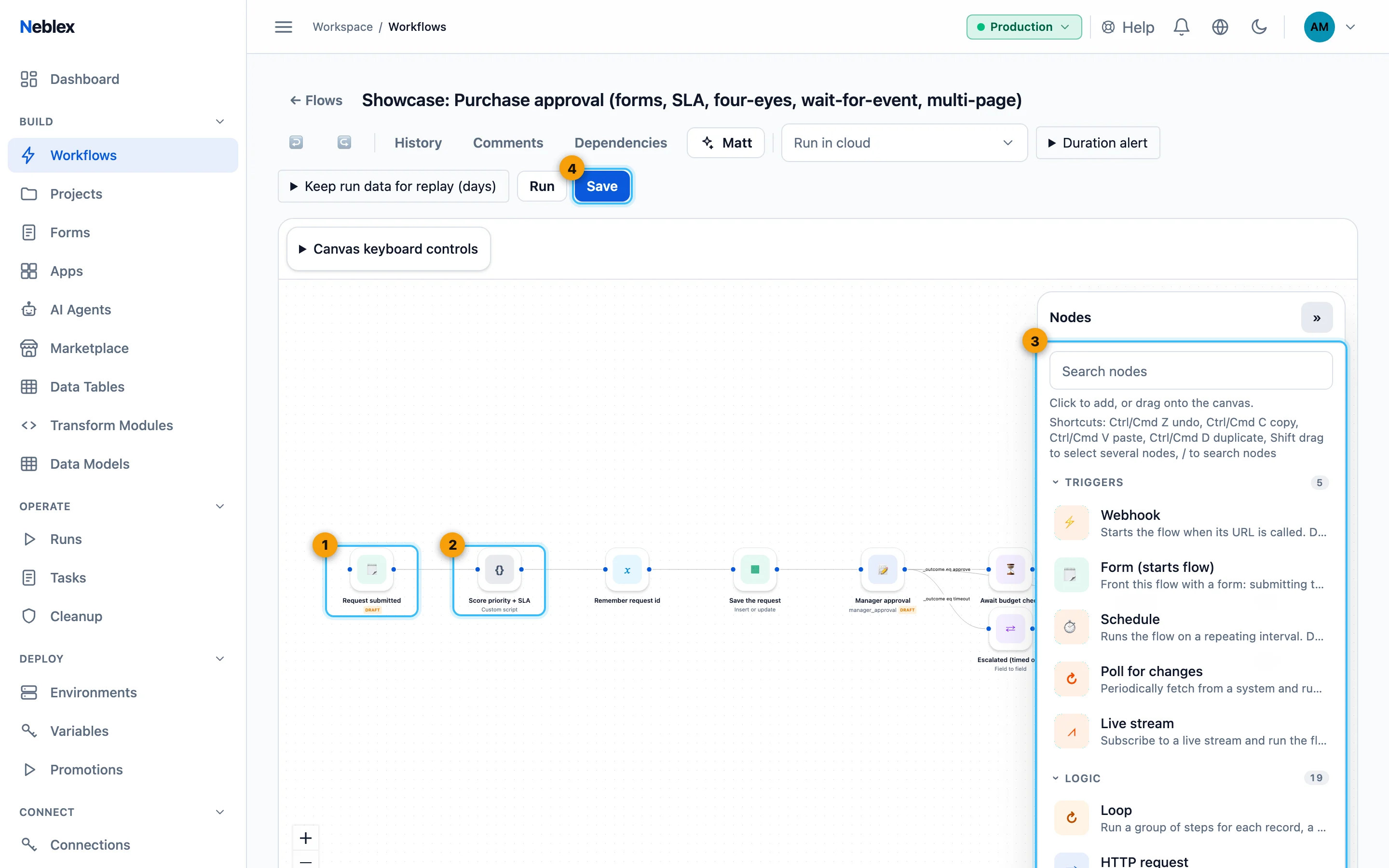
- The trigger: what starts the flow.
- A step. Records travel along the edges from left to right.
- The node library: shapes and adapters to add.
- Save creates a new version; Run tests the saved flow.
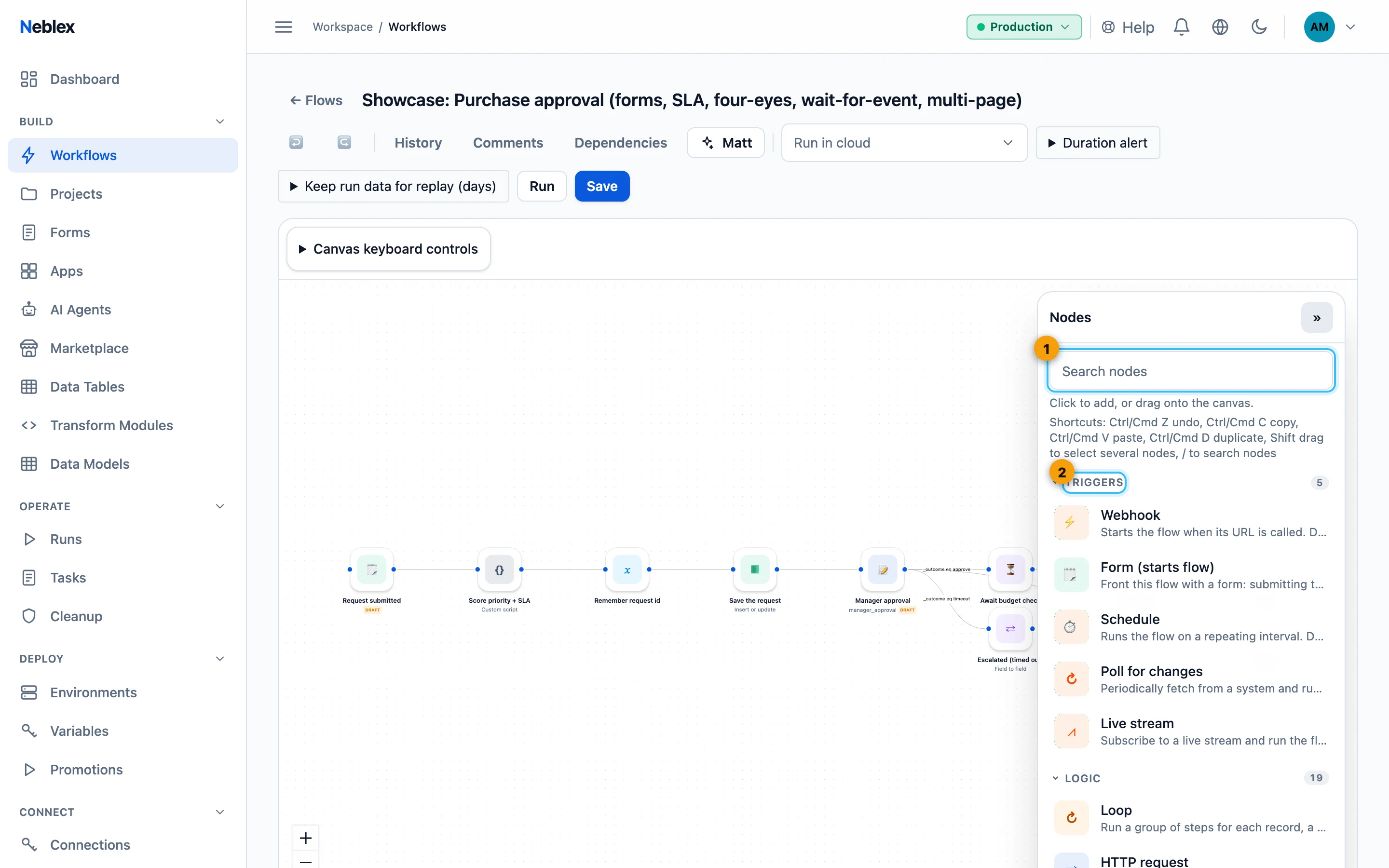
- Search every shape and adapter, or press /.
- Shapes are grouped: Triggers, Logic, Transform, Data, Files, AI and Code.
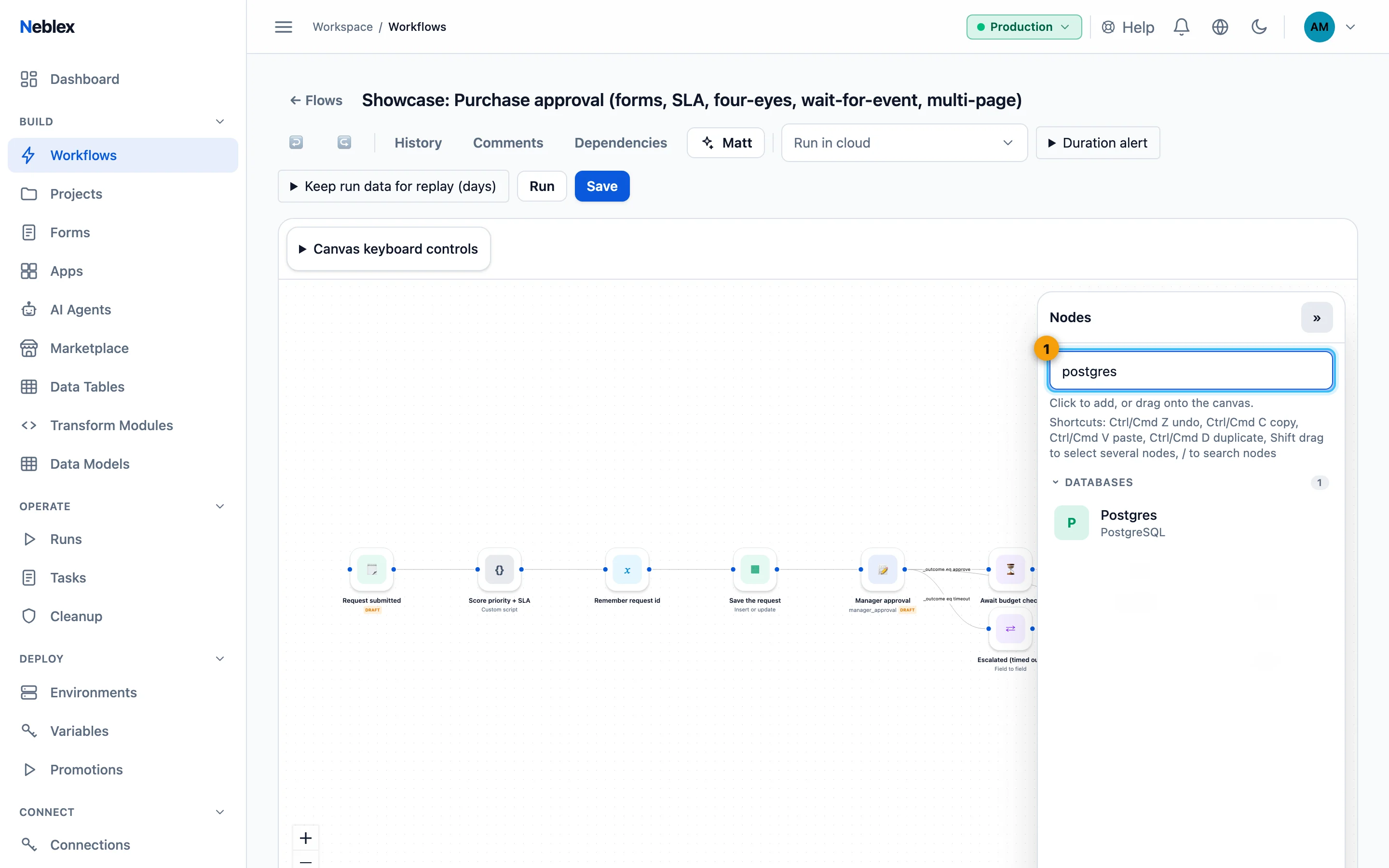
- Type a system name to find its adapter; drag it onto the canvas.
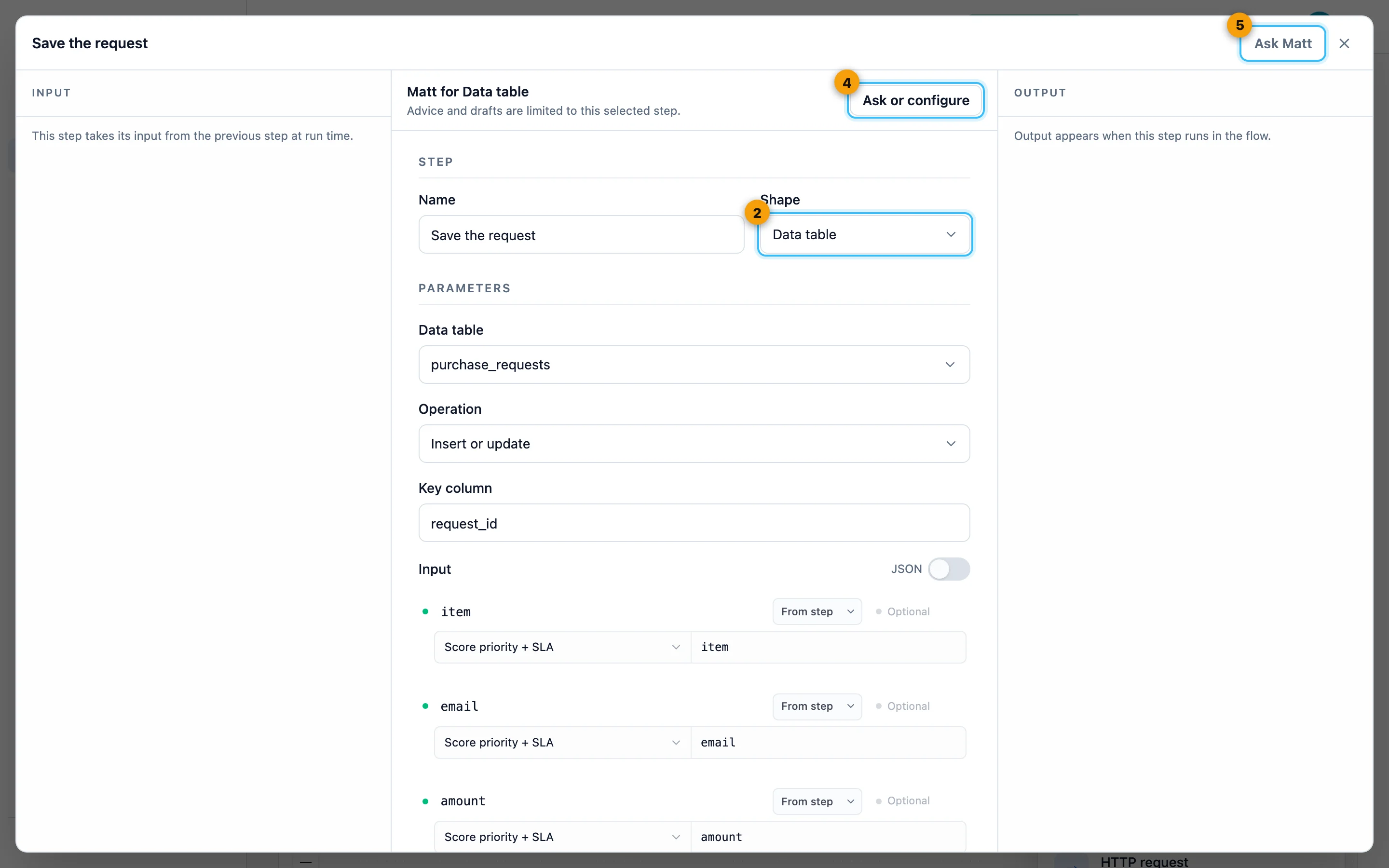
- The step type; change it with the Shape dropdown.
- Matt for this step: describe what it should do and get a validated draft.
- Ask Matt to explain this step.
The builder toolbar
| Control | What it does |
|---|---|
| ↩ Undo / ↪ Redo | Step back and forward through canvas changes (up to 100). |
| History | Every saved version. Compare any version with the current flow and restore it. See Versions. |
| Comments | Notes for your team on this flow. |
| Dependencies | The flow's bill of materials: connectors, connections, sub-flows, forms, data tables, variables, AI agents and On-Prem Workers it uses. |
| Matt | Opens the builder assistant for this flow (Ctrl/Cmd + K). See Matt. |
| Run target (Run in cloud) | Where the flow executes: the cloud, one On-Prem Worker, or an On-Prem Worker cluster. |
| Run / Stop | Opens Test this flow (see below); Stop cancels the running test. |
| Save | Saves a new version. Running always runs the saved flow, so Run saves first. |
| Fix With Matt / Retry | Appear on the banner when a run fails. |
| Zoom, fit and lock | Bottom-left canvas controls. A locked canvas can be inspected but not changed. |
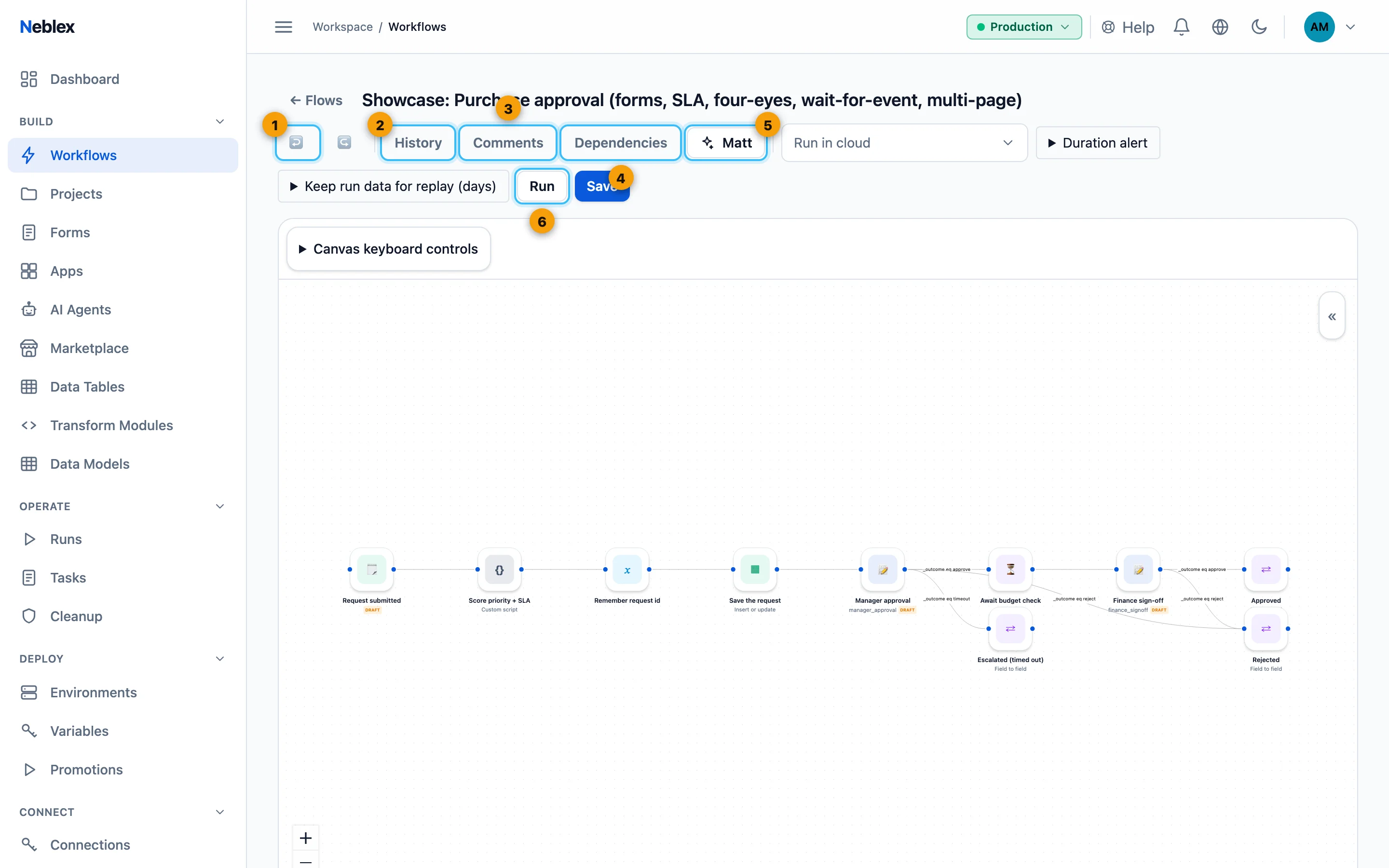
- Undo and Redo.
- Version history with compare and restore.
- Comments for your team.
- Everything this flow uses.
- Matt (Ctrl/Cmd + K).
- Run opens Test this flow.
Testing a flow
Run opens Test this flow. Test runs are isolated: nothing is published or activated, and each appears in Runs as a Canvas test. A completed test counts toward your monthly executions like any run; a failed test never counts. What you can do depends on the trigger:
| Trigger | Test options |
|---|---|
| Webhook | Paste a Sample request body and Send test request. The production webhook URL is shown for reference. |
| Form (starts flow) | Open form and watch opens the real form in a new tab (it does not need to be published); submit it and the run streams onto the canvas. Or Run with sample values. |
| Schedule / Poll | Run now runs it once as an isolated test. |
| Live stream | Enter a Sample event and Send sample event. |
| No trigger (manual) | Runs immediately. |
While a test runs, each node shows its status; click a node to see the records it received and produced.
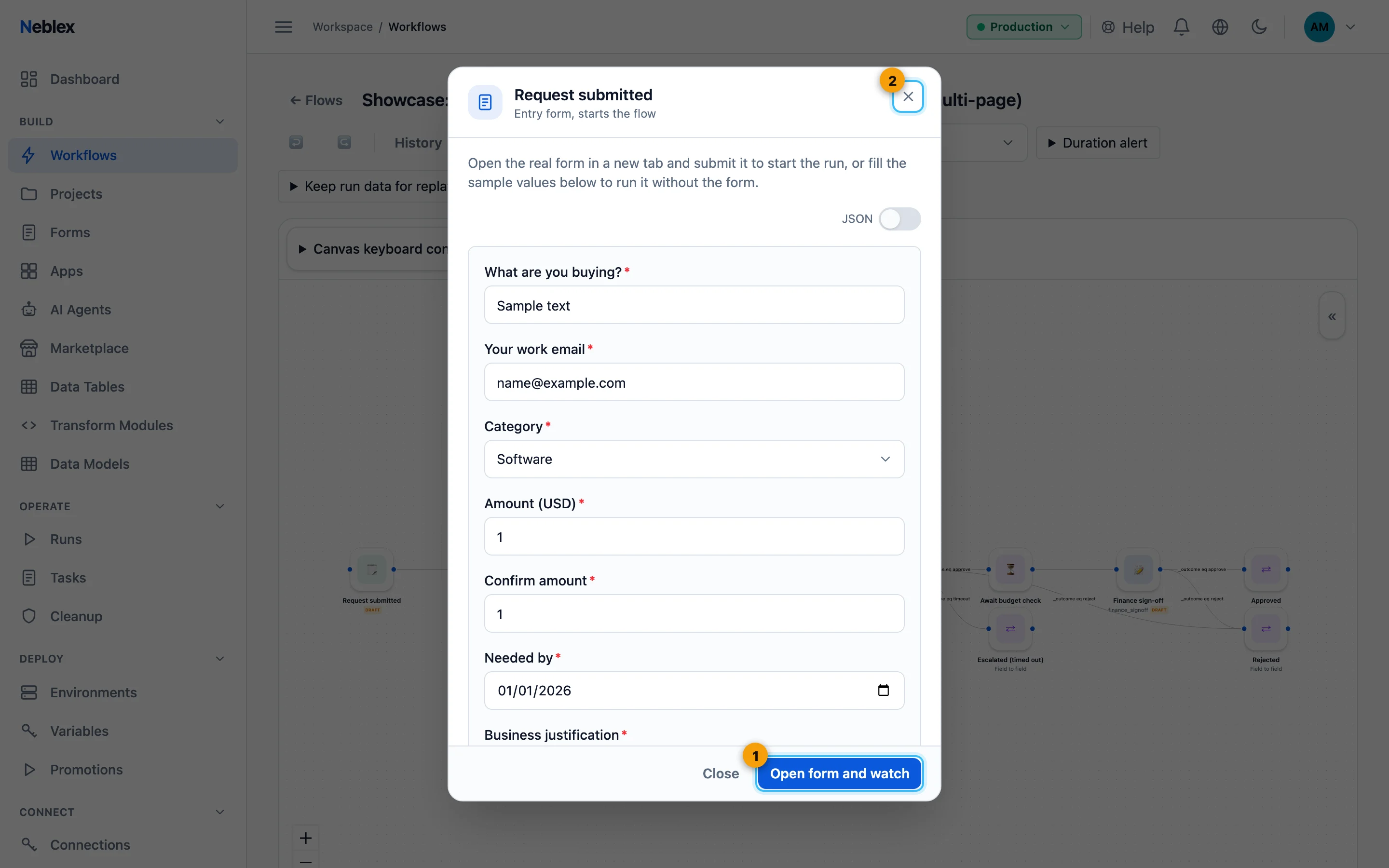
- Open the real form in a new tab and watch the run stream onto the canvas.
- Close the test without running.
Canvas shortcuts
| Action | How |
|---|---|
| Undo / redo | Ctrl/Cmd Z and Ctrl/Cmd Shift Z |
| Copy and paste nodes | Select, Ctrl/Cmd C, then Ctrl/Cmd V. Copies keep their configuration, and edges between copied nodes come along. |
| Duplicate | Ctrl/Cmd D |
| Select several nodes | Hold Shift and drag a box, or Ctrl/Cmd-click nodes. Dragging one selected node moves them all. |
| Delete the selection | Backspace or Delete |
| Open a node's full settings | Double-click it |
| Search the node library | / |
| Open Matt | Ctrl/Cmd K |
Flow settings
- Run target: cloud, a standalone On-Prem Worker, or a Worker cluster. See Run a flow on a Worker.
- Duration alert: Alert after (seconds) reports a run that takes longer than expected. It only alerts; it never stops the run. 0 or empty turns it off.
- Keep run data for replay (days): by default a successful run's record data is removed when the run finishes. Set a number of days (up to your plan's cap) to keep it so you can replay successful runs.