Forms
Forms
Forms collect input from people, including people without an account. A form can start a flow (an entry form, such as a request or intake page) or pause a flow for a person to review, correct or approve data (an in-flow form).
The Forms list
Open Build › Forms. Each row shows the name, identifier, status (Draft or Published, switchable right in the Status cell), version and last update. Use New Form, Import (a form file) and Trash at the top. Row actions: Edit, and in the menu Access Link (copies a signed, expiring link), History, Duplicate and Delete.
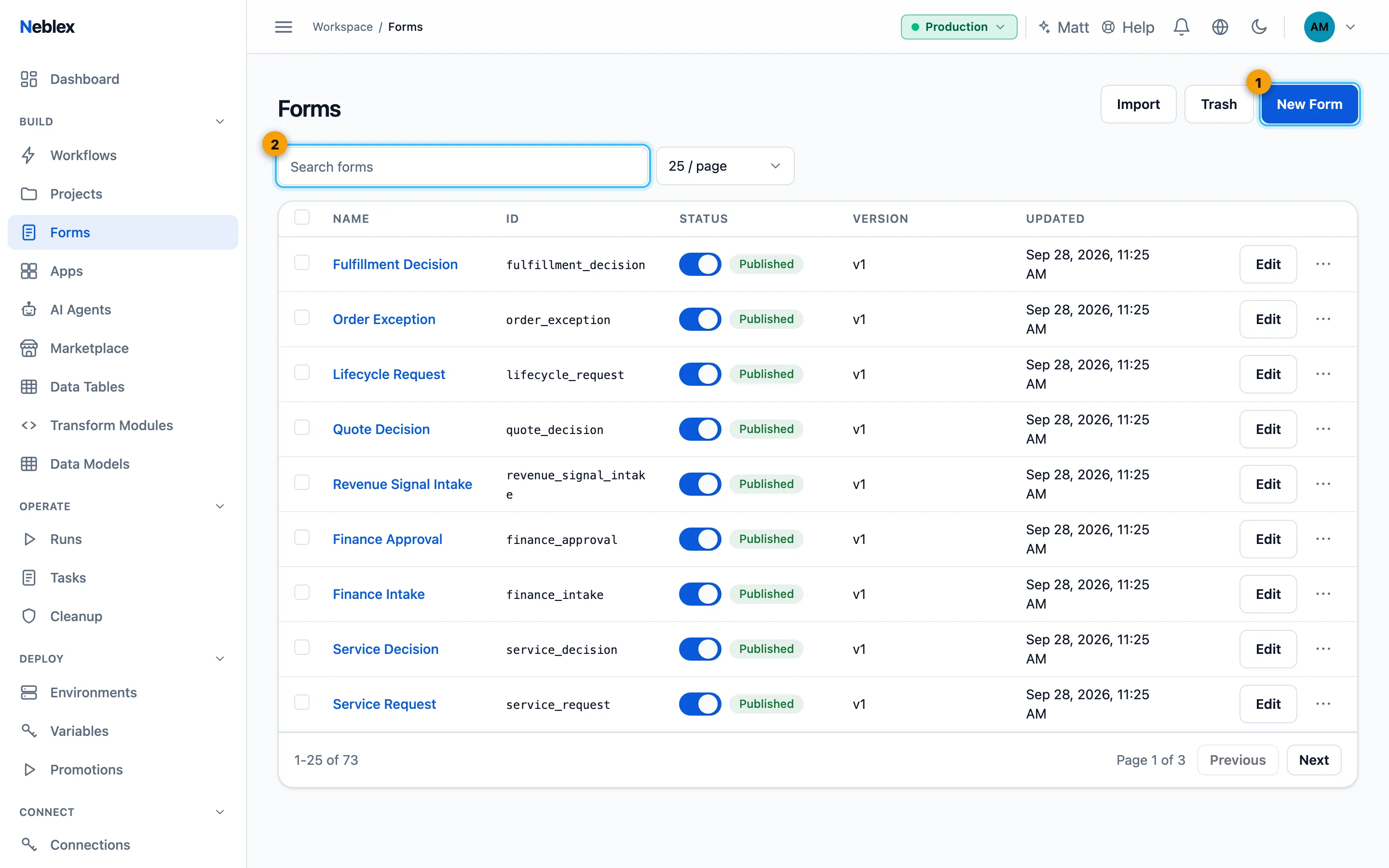
- New Form opens the form builder.
- Find a form.
Building a form
- Create the form. On Forms click New Form and give it a Form name. The builder opens on the Design tab.
- Add fields. Open the field palette (Build your form) and drag fields onto the grid, or search them. The Outline tab lists every field in order.
- Arrange them. Drag fields between cells. Set the grid's Columns (1 to 6) and Rows with no field selected, and each field's Span and Align.
- Configure each field. Click a field to edit its Field Properties: label, help text, placeholder, required, validation and visibility rules.
- Preview and save. Switch to Preview and try Desktop, Tablet and Mobile, then click Save. If something is invalid, the builder lists what to fix.
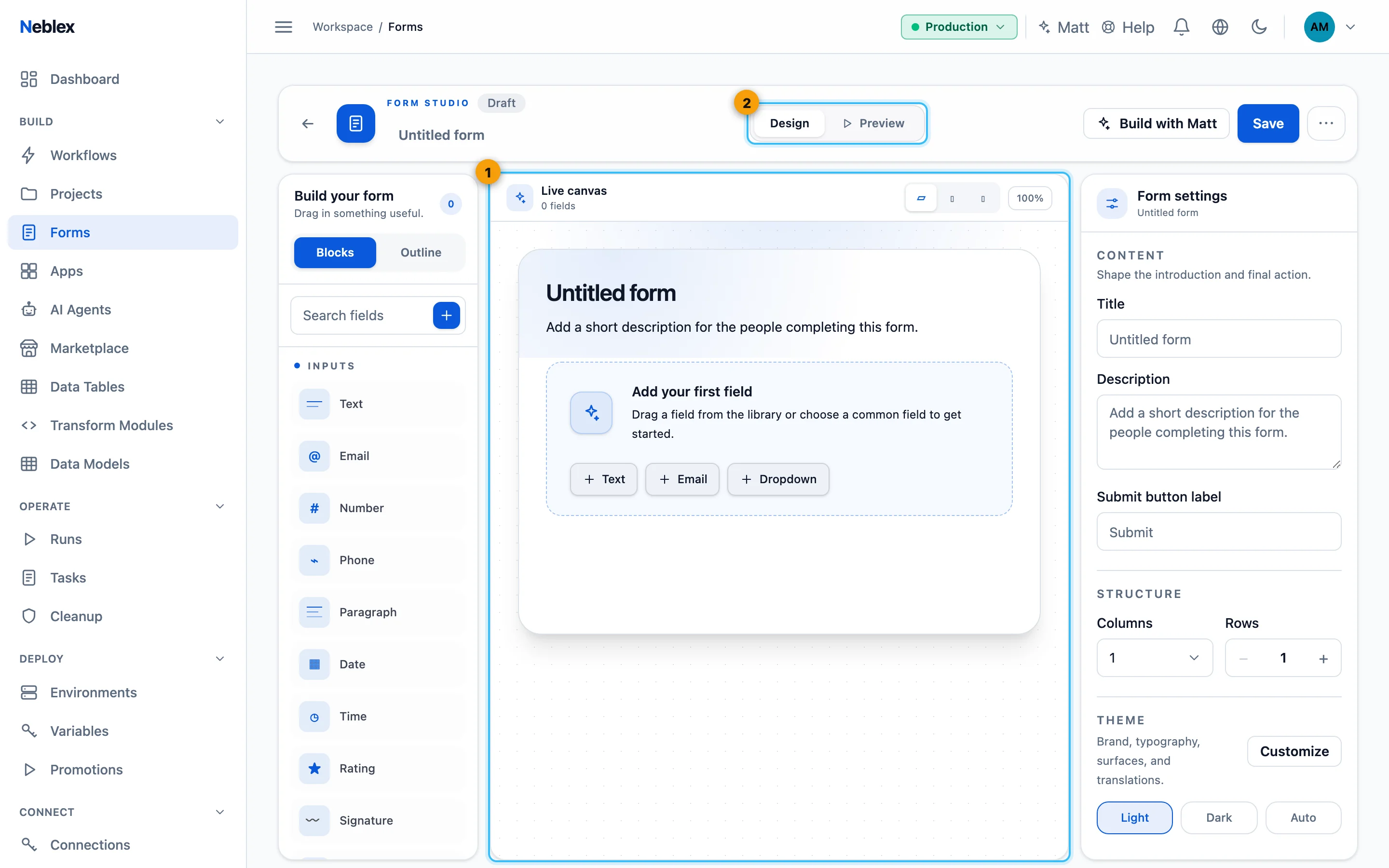
- The form grid.
- Design and Preview.
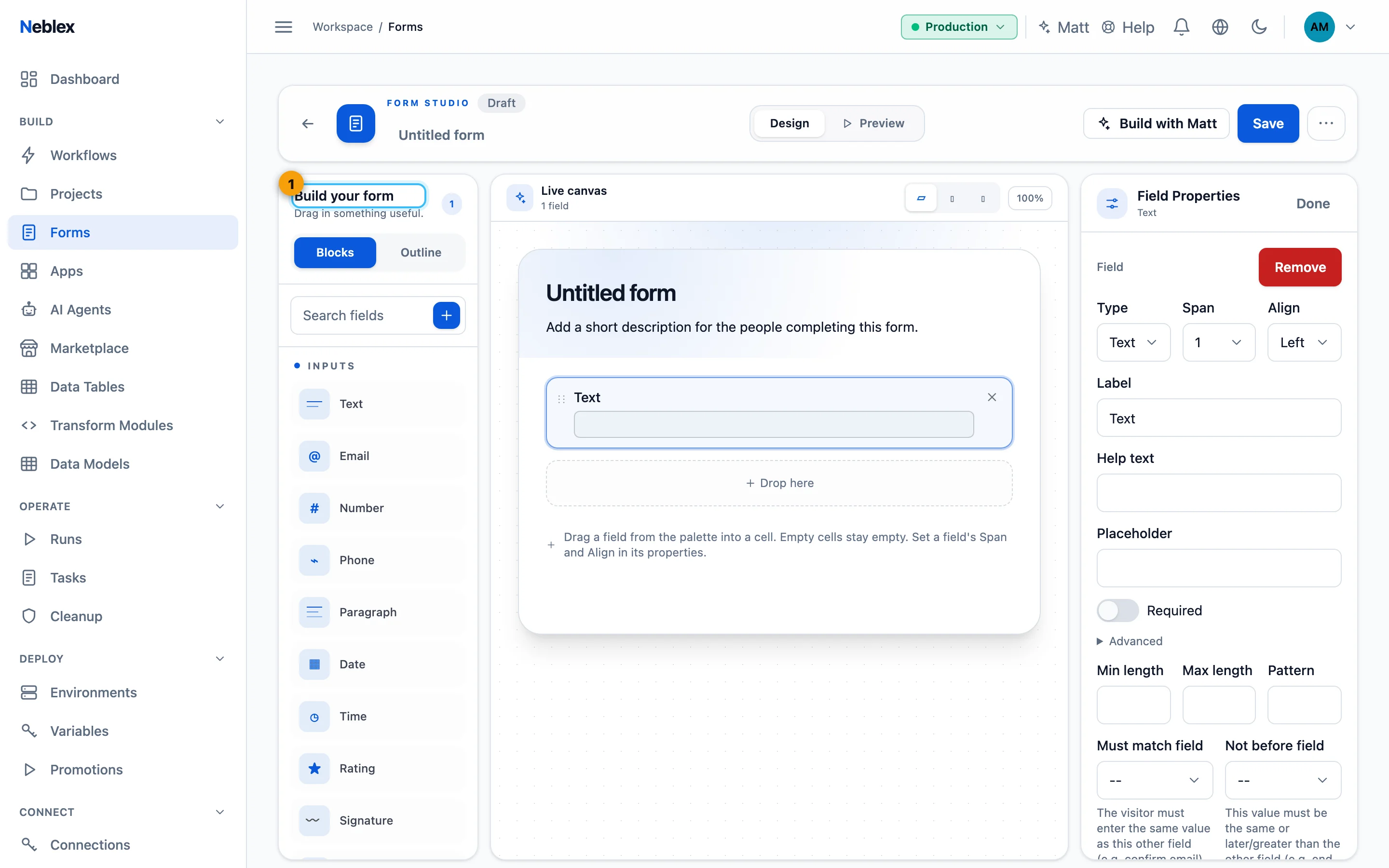
- The field palette: inputs, choices, a records grid and layout blocks. Drag fields onto the grid.
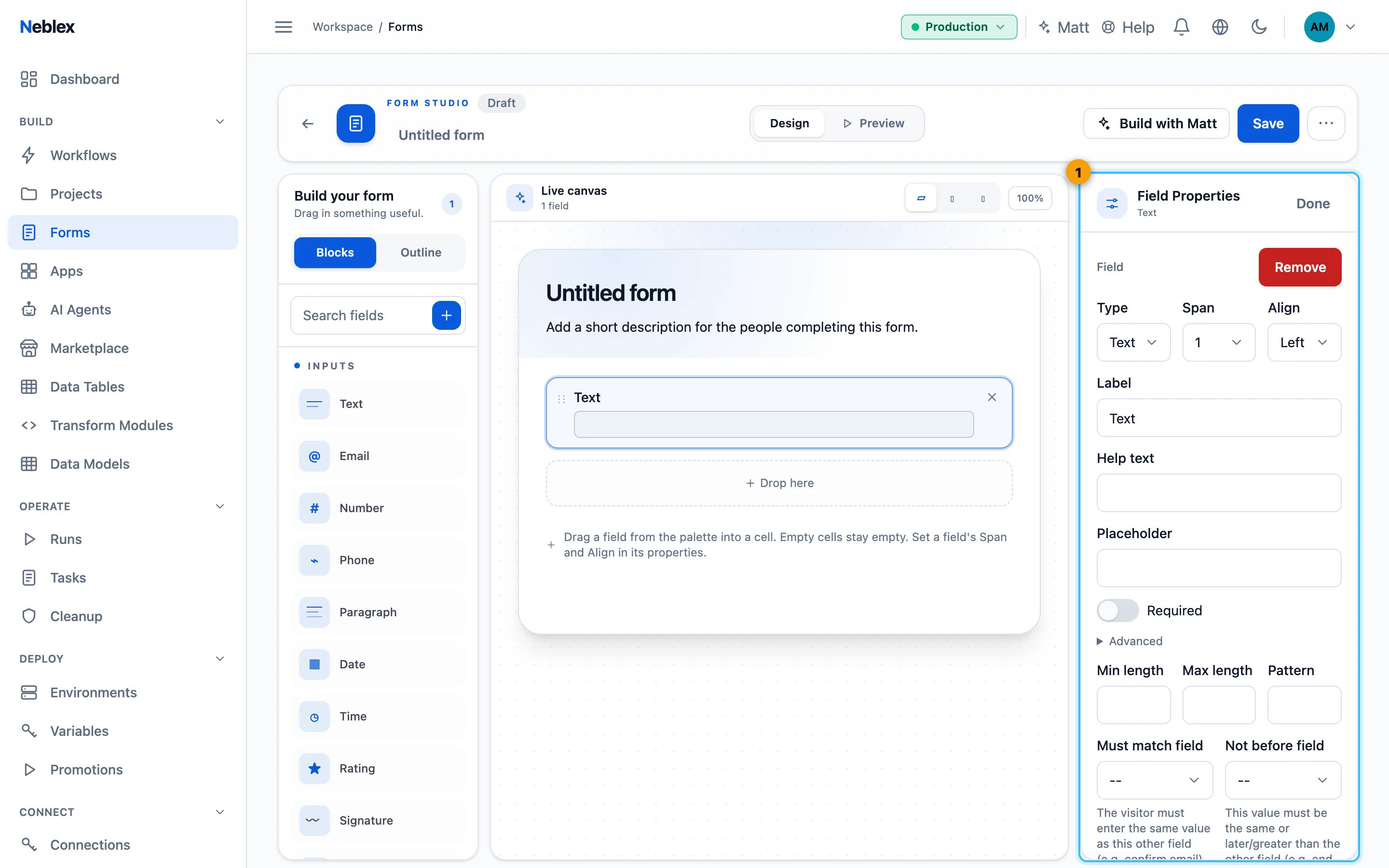
- With nothing selected: title, description, submit label, columns and theme. Select a field to edit its properties.
Field types
| Group | Fields |
|---|---|
| Inputs | Text, Email, Number, Phone, Paragraph, Date, Time, Rating, Signature (drawn with mouse or finger), File upload |
| Choices | Dropdown, Multi-select, Typeahead, Radio group, Checkbox group |
| Data | Records grid: a table of rows to review, edit, add or delete |
| Layout | Heading, Display text, Divider, Spacer, Button |
Field settings
| Setting | Applies to | What it does |
|---|---|---|
| Label, Help text, Placeholder, Required | Input and choice fields | What people see and whether they must answer. |
| Key (under Advanced) | Input and choice fields | The field name your flow receives. Filled from the label; lowercase letters, digits and underscores, up to 80 characters. |
| Min length, Max length, Pattern | Text, Paragraph, Email, Phone | Length limits and a regular expression the answer must match. |
| Minimum, Maximum | Number, Rating | Allowed range. |
| Must match field | Text-like, Number, Date, Time | Same value as another field, for example confirm email. |
| Not before field | Text-like, Number, Date, Time | Same or later/greater than another field, for example end date after start date. |
| Options from | Choices | Fixed list (one label per option) or A flow that returns value and label rows. Reload options when these fields change makes dependent lists, such as country then state. |
| Show only when a condition is met | Input and choice fields | Show the field only when another field equals, does not equal, is greater or less than, contains, is one of, has a value or is empty. |
Validation, cross-field rules and visibility are enforced on the server as well as in the browser: a hidden field is never accepted, even if someone tries to send it.
Records grid
A Records grid shows rows from The data passed into this step (on an in-flow form) or from A flow. Switches: Allow editing, Search box, Allow add row, Allow delete row; Rows per page (1 to 100); Columns with a header and an Editable switch each (leave empty to derive columns from the data). Use it for batch review: a reviewer corrects twenty invoice lines in one task.
Button actions
| Action | What it does |
|---|---|
| Submit the form | Validates and submits. |
| Clear the form | Resets all fields. |
| Record a decision | Submits with a Decision value such as approve (letters, digits, _, -, up to 48). The flow receives it as _outcome. |
| Run a flow | Runs the chosen flow with the form's current values and shows its result without leaving the page, for example to look up a customer. |
Form settings and appearance
- With no field selected: Title, Description, Submit button label, grid structure and a light/dark/auto Theme switch.
- More › Settings: Display name, Form id, the Public Link, and Theme (brand color, surface, text color, mode, corner radius, logo URL) with a contrast check.
- Uploads: choose a Storage destination (one of your storage connections, such as a bucket or file share) and a Folder such as
intake/claims. Files people upload go to your storage. Without a destination, uploads are refused in production. - Translations: set the Original content language, Add language (for example
deorfr-CA) and translate the title, description, submit button, and every label, help text, placeholder, choice and grid column. The coverage view shows what is missing, and stale translations are flagged when you change the original. Visitors see the best match for their browser language. - More › Export downloads the form definition.
Publishing and sharing
- Publish. Click Publish in the builder (or switch the status in the Forms list). Only published forms can be opened by the public; Unpublish takes it offline.
- Copy the link. Use More › Copy public link for the open address
https://if.neblex.com/f/<workspace>/<form>, or Access Link in the Forms list for a signed, expiring link. - Share it. Send the link to the people who should fill it in. They do not need an account.
Who can reach it. Hosted forms follow Security › Inbound Access (public, or internal networks and allowed IP ranges). A form trigger can require a capability link or named people. In-flow forms open only through the private link a flow sends; the public address alone never opens a paused task. When a signed link has expired, visitors can request a fresh one by email.
History, duplicate, Trash & restore
Every save is kept as a version. History shows the versions; Compare shows side-by-side changes and Restore this version makes an old version the new current draft. Duplicate creates an independent draft copy with a new name and identifier. Delete first checks where the form is used; unused forms move to Trash, where Restore brings them back.
Starting a flow with a form (entry form)
- Add the trigger. In the flow, add Form (starts flow) from the Triggers group.
- Select the form. Choose the form; the Output sample shows the record the flow will receive, one key per field.
- Choose who can submit. Anyone with the link, Capability link only, or Named people only.
- Save and activate. Publish the form and set the flow Active. Each submission starts a run with the answers as input.
Pausing a flow for human input (in-flow form)
- Add the step. Add Wait for form where a person must act, and connect the steps before it (their records pre-fill the form).
- Select a form. Any form can be used in-flow, published or not.
- Decide who acts. Add people under Notify these people, route to named people or skills, or leave it in the shared Tasks pool. See Human tasks.
- Continue with the answer. Connect the next steps. The submitted data is the step's output, and a decision button adds
_outcometo branch on.
Notifying people (recipients)
- Open the Wait for form step and find Notify these people.
- Add recipients, one per line. A fixed address (
[email protected]) or a value from the data ({{ ticket.assignee_email }}). - Save. When the run reaches this step, each recipient receives a private, expiring link that opens the pre-filled form. Anyone listed can act; the first submission continues the flow.
Links renew themselves. Shortly before a link expires while the task is still open, a fresh one is emailed automatically. Emails go through your own mail server when configured under Alerts, otherwise the platform's mailer. A member picked by round robin or least busy routing is emailed a link to the exact task even without listed recipients.
Multi-page forms (journeys)
A flow can pause on several forms in a row. When a person submits one page and the flow immediately reaches the next form, that page opens right away in the same session, pre-filled with everything collected so far: intake, then review, then confirm. If the next form has recipients, it becomes a task for them instead and the current person is done. When the flow finishes, the person sees the flow's closing message.
Decision buttons (approve / reject)
- Add a Button field for each choice.
- Set its action to Record a decision and a value such as
approveorreject, with a clear label. - Branch the flow. On edges after the step, add conditions on
_outcome. A decision can only be one the form offers, and each decision is recorded with who acted and when.
What happens after submit
The submission is validated (required fields, patterns, ranges, cross-field rules, visibility). If it is valid, an entry form starts a run and an in-flow form resumes one. The page then shows what the flow decides: a message, a redirect, the next form, or the default Thank you. Your response has been recorded. If validation fails, the invalid fields are highlighted so the person can correct them.