Apps
Apps
Apps turn flows and data tables into working software: dashboards, admin consoles, support desks, customer portals. You place components on a grid, and every table load, button press and chart refresh runs one of your flows (or reads a data table) on the server. There is no code in the browser to secure.
The four ideas behind every app
- Pages: the screens, each with a route and a grid of components, shown in a sidebar or tab navigation.
- Components: tables, charts, stats, lists, details, inputs, buttons, menus, embedded forms, a task worklist, an AI agent chat, text, images and layout blocks.
- Actions: named operations that run a flow. The browser can run only the actions you declared.
- Bindings: placeholders that feed data into components, such as
{{ action.load_orders.output }}.
The Apps list
Each app shows its owner, deployment (live version), audience (Workspace, Private link or Public), surface (pages and actions) and 30-day activity and health. Row actions: Open, Edit, and in the menu Public Link, Export, History, Duplicate, Promote (ships the app and the flows its actions use to another environment) and Delete. Import and Trash are at the top.
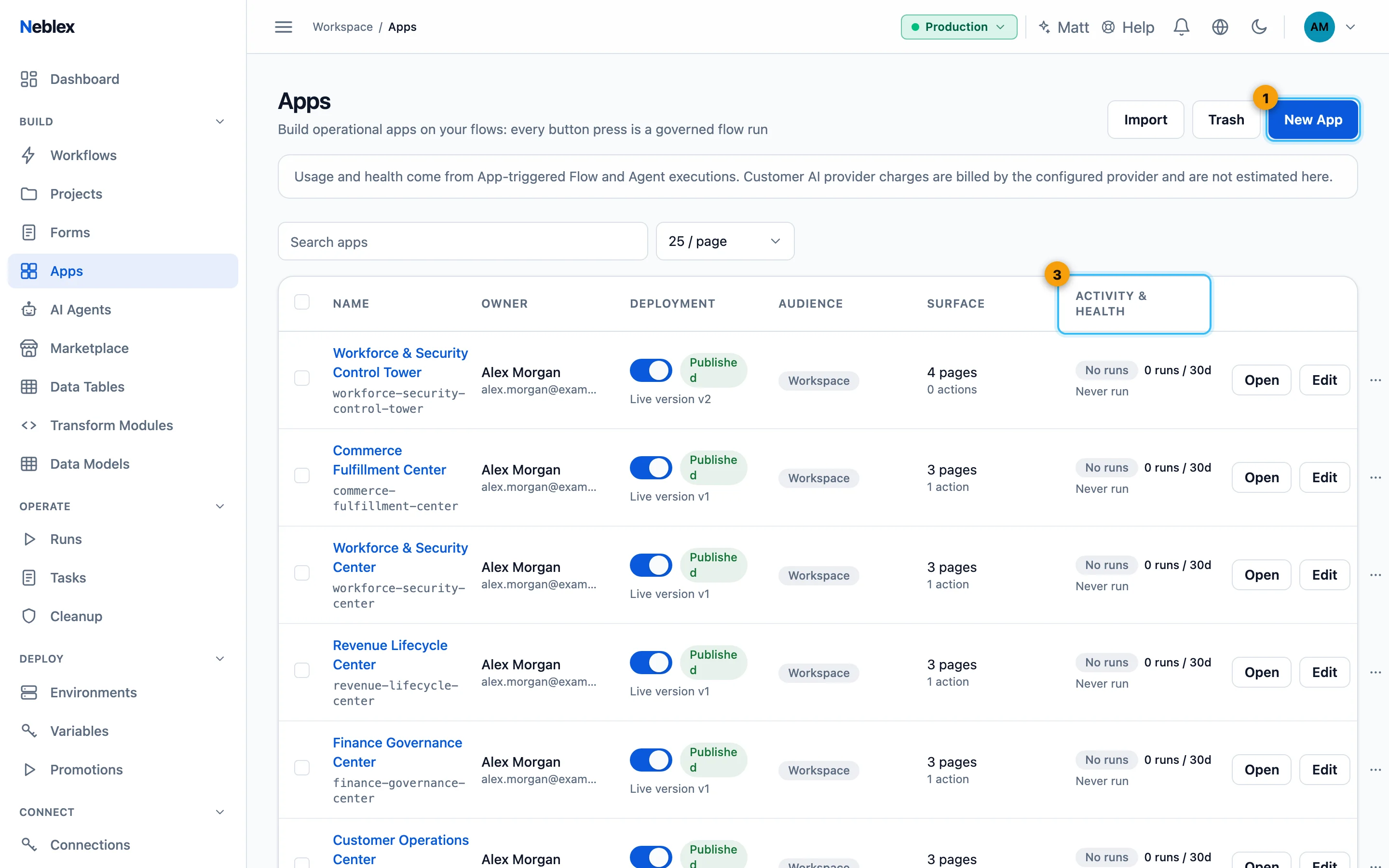
- New App opens the app builder.
- Runs and health over 30 days.
Build your first app
- Create the data flow first. Build a flow whose last step produces the records to show, and test it so you know its output shape. (For a data table you can skip this: tables bind directly.)
- Create the app. In Apps click New App. Enter an App name and an identifier (it becomes part of the app's address).
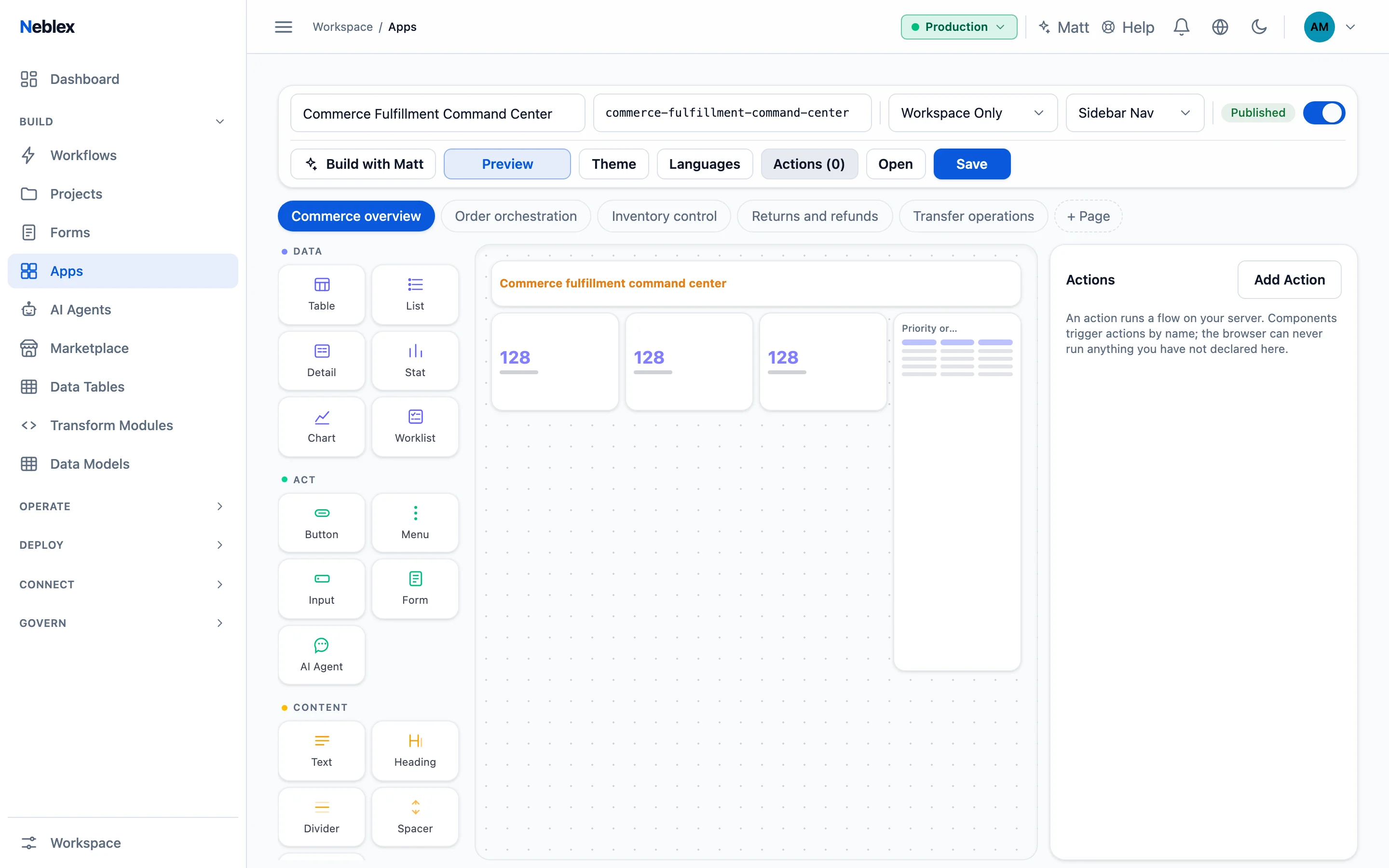
- Declare an action. Click Actions, then Add Action. Name it (for example
load_orders) and choose its Flow. Click Run to execute it for real and see the data it returns. - Load data when the page opens. With nothing selected, the right panel shows the page settings. Under Load On Open turn your action on.
- Place a table. Click Table in the palette and choose your action as its Data Source. Add Columns From Data suggests columns from the last result.
- Add a chart and a stat. Place a Chart on the same data source, choose the Chart Type, X Key and Series. Place a Stat with Value
{{ action.load_orders.output.length }}and a caption. - Wire a button. Place a Button, click Add Event (On Click), then Add Step and choose Run Action. A refresh button simply re-runs the data action.
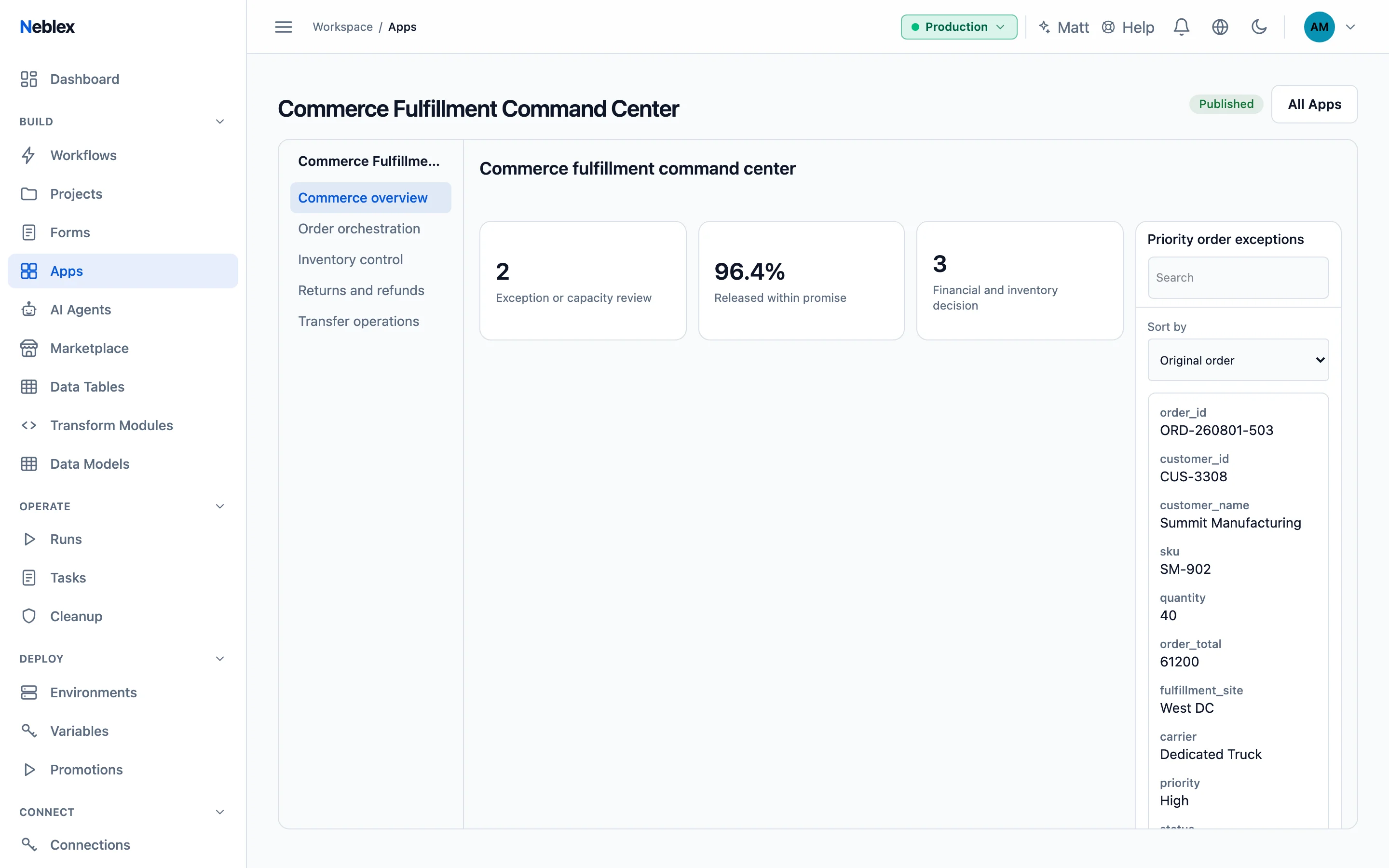
- Preview. Click Preview: the canvas becomes the running app and actions really execute. Click Back To Editing to continue.
- Publish and share. Save, turn on Published, and choose the audience. Members open it from the Apps list; for a public app copy its Public Link.
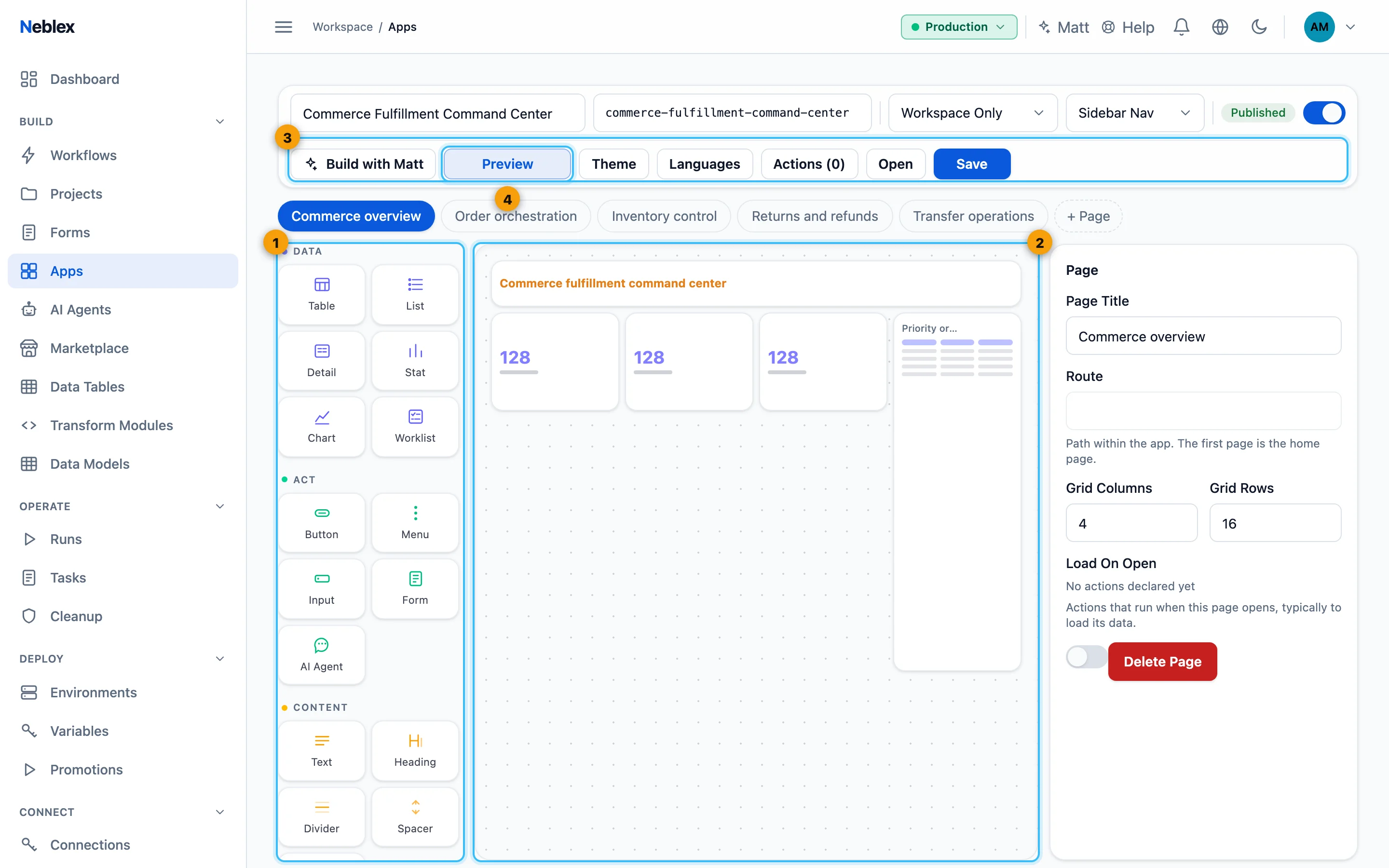
- Components: data, act, content and layout.
- The page grid.
- Actions: the flows this app may run.
- Preview runs the real app.
Components
| Group | Component | Key settings |
|---|---|---|
| Data | Table | Data Source (an action) or Workspace Data Table (server-side search, sort and paging). Columns one per line as key:Label[:format]; Row select, Search box, Rows per page; Row Buttons Label=action_name; Bulk Buttons (the flow receives the checked rows). Event: On Row Select. |
| List | Data Source, Item Title, Item Subtitle, Row Buttons. Event: On Row Select. | |
| Detail | Fields, one per line: Customer={{ input.orders.customer }}. | |
| Stat | Value, Caption, Format (As-is, Number, Currency, Date, Date & time, Yes/No). | |
| Chart | Data Source, Chart Type (Line, Bar, Area, Pie, Donut), X Key, Series (one per line, key or key:Label). | |
| Worklist | An embedded task inbox: a flow (or all visible flows), Only assigned to me, Only unassigned, Only overdue, Tasks per page. Workspace-member apps only. | |
| Act | Button | Style (Default, Primary, Danger, Ghost). Event: On Click. |
| Menu | Menu items, each with its own steps. | |
| Input | Field Type (Text, Email, Number, Phone, Multiline, Dropdown, Multi Select, Typeahead, Radio, Checkboxes, Date, Time, Rating, Signature), label, help text, required, placeholder, Choices (value:Label per line), length, pattern and range rules. Event: On Change. | |
| Form | Embeds one of your published forms with its own validation and flow. | |
| AI Agent | A chat with a Published AI Agent, pinned to its current version; Welcome message, Message placeholder. | |
| Content | Text, Heading, Divider, Spacer, Image | Image has Image URL and Alt text. |
| Layout | Container, Card, Tabs, Modal | Hold other components (Add content). A Modal is opened by an event. |
Every component also has a Label, Width (columns), Height (rows) and Show When: always visible, or only when a page variable has a value, is empty, equals, differs from, is greater or less than, or contains a value.
Actions
| Setting | What it does |
|---|---|
| Name | Lowercase letters, digits and underscores; used in bindings and buttons. |
| Run mode | Wait shows the flow's result; Fire returns immediately. |
| Flow | The flow this action runs. The server decides this; a request can never point an action at another flow. |
| Input Mapping | The JSON the flow receives, for example {"id": "{{ row.id }}", "query": "{{ state.search }}"}. |
| Success Message / Error Message | Shown after the run. The success message can use {{ output }}. |
| After Success | Stay on the page or go to another page. |
| Refresh After Success | Other actions to re-run, so tables show the change immediately. |
Bindings
| Placeholder | Means |
|---|---|
{{ action.<name>.output }} | The last result of an action. |
{{ row.<field> }} | The row a person clicked (row and bulk buttons, row-select events, input mapping). |
{{ input.<component id> }} | The current value of an input, or the selected row of a table. |
{{ state.<variable> }} | A page variable set by Set Variable. |
Paths can use .length, .first, .last and [0]: {{ action.load_orders.output[0].total }}. A value that is only a placeholder keeps its type; placeholders inside text are inserted as text.
Events
Buttons, menus, tables, lists and inputs have events (On Click, On Row Select, On Change). Each event runs steps in order: Run Action, Set Variable, Go To Page, Open Dialog, Close Dialog, Show Message.
Interactive patterns
- Master/detail: a table's On Row Select shows the row in a Detail component bound to
{{ input.<table id>.field }}. - Confirm before acting: place a Modal with buttons; open it with Open Dialog; its confirm button runs the action and closes it.
- Search: an Input's value goes into the data action's input mapping; a Search button re-runs the action.
- Multi-page apps: add pages with + Page, move between them with Go To Page or After Success, and use Hide from navigation for pages reached only by events.
- Bulk actions: enable Row select and add Bulk Buttons to act on all checked rows at once.
Page settings
Page Title, Route (the first page is the home page), Grid Columns and Grid Rows (default 4 × 12), Load On Open, Hide from navigation, Delete Page. The app header sets navigation to Sidebar Nav, Tab Nav or No Nav.
Appearance and languages
Theme sets brand, accent, background and text colors, logo URL, corner radius and font, with a live preview. Languages adds translations for titles, labels, choices, columns and messages.
Who can open an app
- Workspace Only (default): signed-in members of your workspace.
- Anyone With Secret Link: only visitors with a signed, expiring link from Copy Secret Link. Switching back to Workspace Only shuts every link out immediately.
- Anyone With Link: public once published. Drafts are never public, public apps are rate-limited per visitor, and Inbound Access rules apply. Workspace Data Tables and Worklists work only in workspace-member apps; use an action for public data.
Publishing a public app publishes its actions. Anyone with the link can run the actions the app declares. Review what each action's flow does and what its input mapping accepts, exactly as you would for a public form.
Operate and recover apps
Every action run is a real run in Runs, counted and audited like any other. History restores an earlier version as a new draft, Duplicate creates an independent copy, and deleted apps can be restored from Trash. Promotion carries a list of everything the app depends on, without secrets; bind each connection in the target environment.
Build with Matt can draft a new app or change the current one, wired to resources you select. See Matt.