A Jira Service Management request, enriched from an on-premise database in 1,074 ms
By Adan Potyondy, Head of GTM
The problem
The service desk is in the cloud. The asset data isn't. In the setup this demo covers, who has which laptop, when its warranty ends and which VPN profile it uses lives in a PostgreSQL database inside the company network, with no port open to the internet.
So when an employee writes "Laptop won't connect to VPN since this morning", the technician's first job is a lookup by hand: find the person, find the device, check the warranty. It happens on every request, before any real troubleshooting starts.
What the demo shows
The recording uses a local PostgreSQL table with three employees: my own record and two fictional ones. The flow has six steps and runs on an On-Prem Worker, our runtime installed on a machine in the same network as the database.
- A Jira automation rule starts it. On "Work item created", the rule's Send web request action posts the request key to a Neblex webhook. Nothing else goes in the call.
- Read the request key. A mapping step takes the key from the webhook body.
- Get the request from Jira Service Management. The Jira Service Management connector reads the request and the reporter's email address.
- Look up the employee in the on-prem database. One SQL query joins on the email address and returns name, department, office, manager, device, OS version, warranty end date and VPN profile. It also labels the warranty as active, expiring soon (within 60 days) or expired.
- Write the internal note. A template turns the row into a short, readable note.
- Add the note to the request. The note is posted as an internal comment, so the technician sees it and the employee doesn't.
When I open the request in Jira, the context is already there, and nobody looked anything up. If the reporter isn't in the database, the run still succeeds and the note says "Not found in asset database", so the technician knows the lookup ran.
What the run shows
The run went from the cloud to the on-premise database and back to the cloud in 1,074 milliseconds. The on-prem lookup took 50 ms of that; the two calls to the Jira Service Management API took 470 ms and 553 ms.
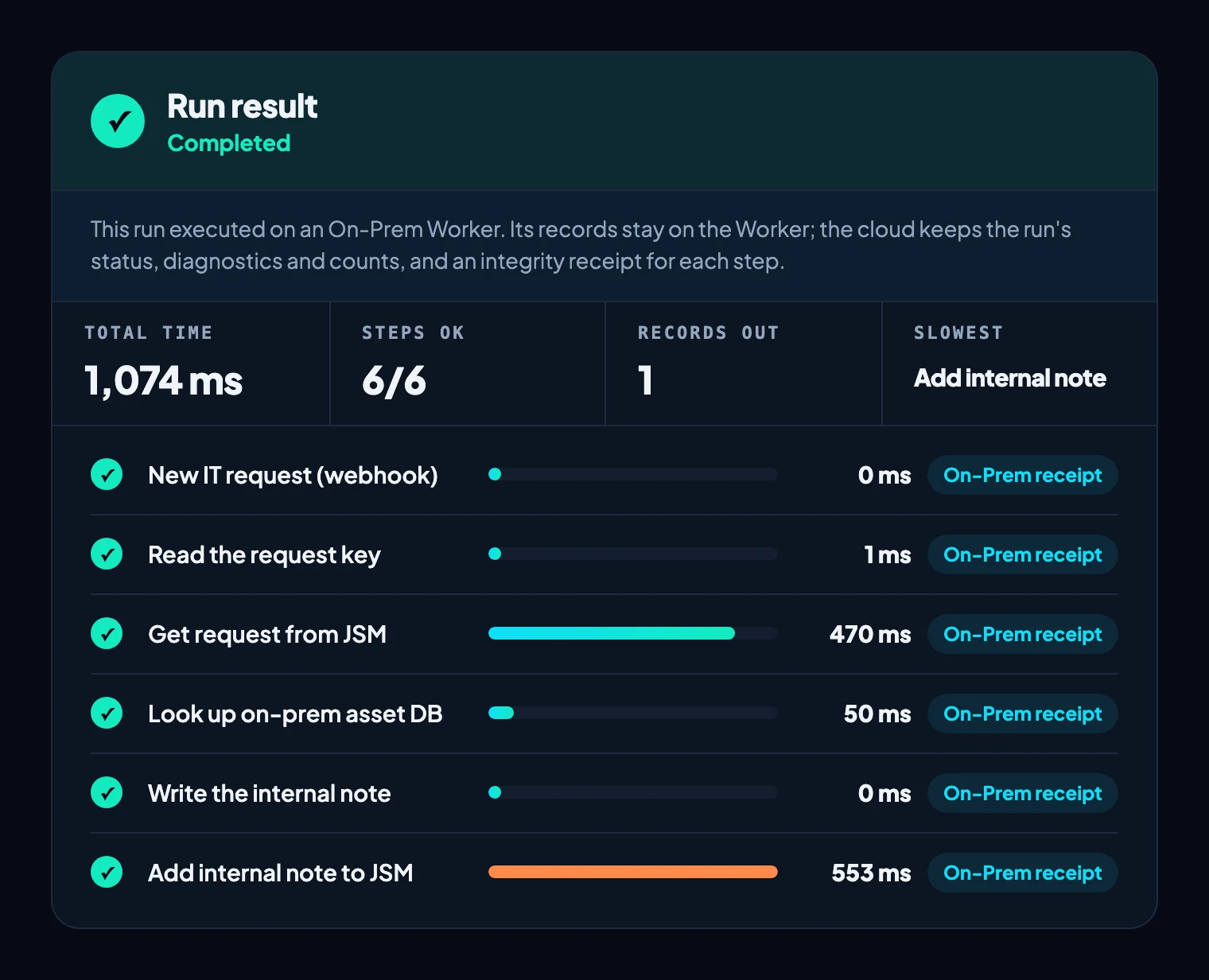
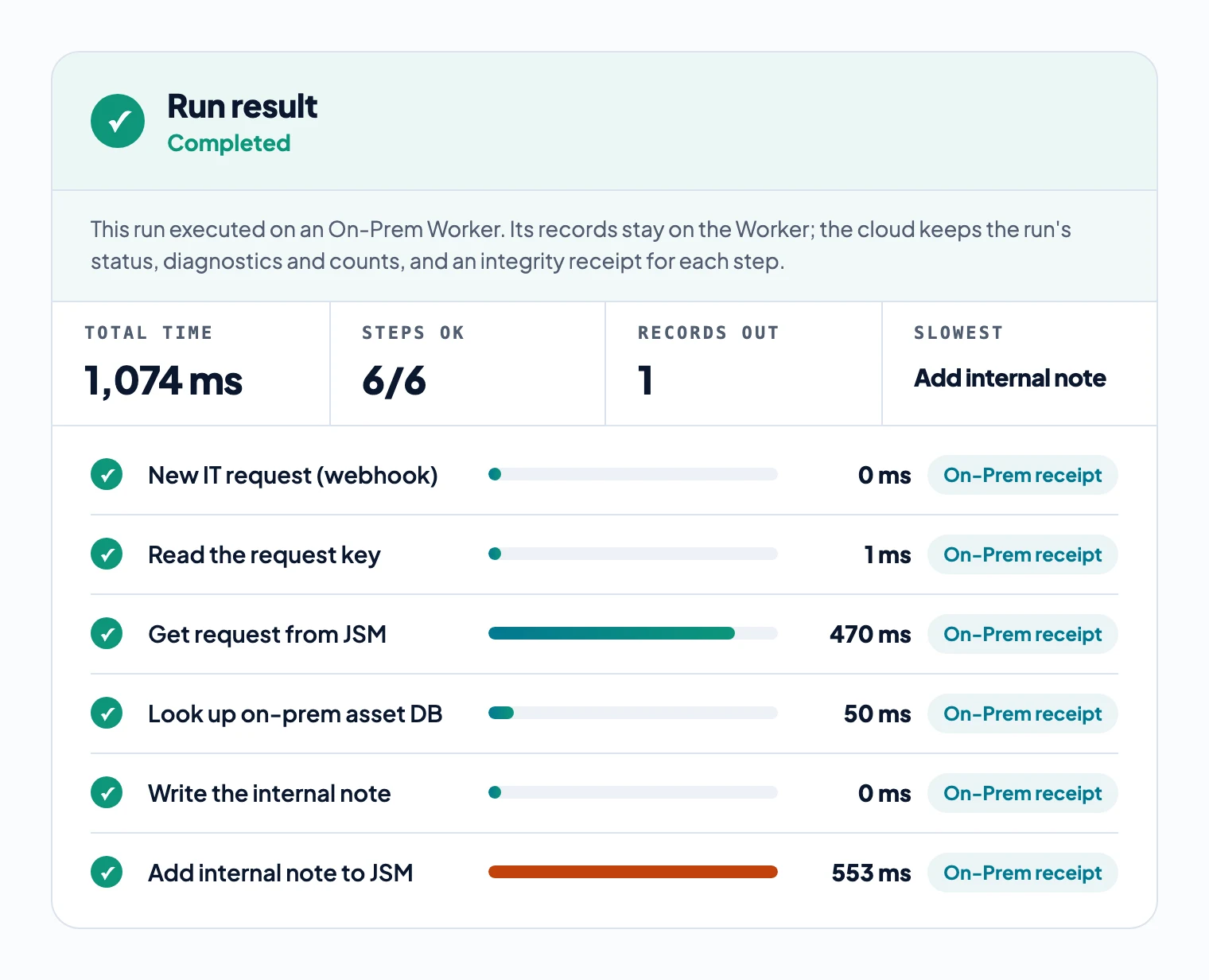
So the database was the fast part. Most of the time went to the round trips to the cloud service desk, which a flow running in the cloud would make too.
The run view also shows what the Neblex cloud kept for this run: its status, diagnostics and counts, and an integrity receipt for each step. The records stayed on the On-Prem Worker, and the cloud view says so: "Their payloads are not available in Cloud."
Why we look it up instead of copying it
The usual way to get asset data into a cloud service desk is to import it and keep the copy current with scheduled imports. That works, but it puts the whole asset inventory in a second place, and the copy is only as fresh as the last import.
A lookup at request time does the opposite. The database stays where it is, the answer is current when the request arrives, and only the fields in the note go to Jira, for the one person on the request.
The runtime is what makes it possible. The On-Prem Worker makes one outbound encrypted connection to the Neblex cloud over HTTPS and accepts no connections from the internet, and it reaches the database locally, the way any internal application would. As the run view above shows, records go only to the systems the flow was built to reach.
Cloud apps and on-prem systems in one flow, with the processing on infrastructure you control, is what we mean by hybrid integration. The same On-Prem Worker that runs this lookup runs bulk loads and scheduled syncs, with the same connectors and the same run history.
What this means for your team
If your technicians start every ticket with a lookup in a different system, that lookup can be a flow step. It's a short build: the demo flow has six steps, and the only thing specific to you is the lookup against your own asset system.
Settle two things first. Decide which fields belong in the note, because whatever the template includes goes to the service desk. And limit who can edit the Jira automation rule: Atlassian warns that someone who can edit it can reconfigure the Send web request action to send out data they shouldn't.
We ran it 50 more times
The video shows one run. To check it wasn't a lucky one, we raised 50 more requests through the same path on October 18, one every five seconds. Each request was created in Jira Service Management, the same Jira automation rule called the webhook, and the flow ran on the same On-Prem Worker against the same database.
All 50 requests got their note. None of the runs failed, and no request was enriched twice.
| Across 50 runs | Lowest | Median | 95th percentile | Highest |
|---|---|---|---|---|
| Processing time, all six steps | 730 ms | 836 ms | 1,018 ms | 1,089 ms |
| On-Prem Worker memory | 18 MB | 30 MB | 30.5 MB | 30.6 MB |
| On-Prem Worker CPU, share of one core | 1% | 2% | 12% | 36% |
The recorded run, at 1,074 ms, was one of the slower ones. The median run took 836 ms, and the database lookup stayed under 85 ms every time, about 6% of a typical run.
The On-Prem Worker barely registered the load: memory went from 18 MB at idle to about 30 MB, and CPU peaked at 36% of one core only briefly. The test ran on a Mac over a regular internet connection, with test requests and the same three-employee asset table as the demo.
If you want to see it on your own service desk and asset database, ask for a demo.
Sources
- Jira automation triggers, Atlassian Support
- Jira automation actions, Atlassian Support
- Jira Service Management Cloud REST API: request, Atlassian Developer
- Running an import in Assets, Atlassian Support
- Schedule an Assets import, Atlassian Support
- Demo flow and run: built and recorded in Neblex on October 16, 2026, on a local PostgreSQL table with one real and two fictional employee records.
- Repeat test: 50 runs through the same Jira automation rule and On-Prem Worker on October 18, 2026, one request every five seconds; processing times from the Neblex run log, On-Prem Worker memory and CPU sampled on the host.
Last checked: October 20, 2026.
Frequently asked questions
Does the asset database have to be reachable from the internet?
No. The flow runs on an On-Prem Worker, a runtime installed inside the network, which reaches the database locally. The On-Prem Worker makes one outbound encrypted connection to the Neblex cloud over HTTPS and accepts no connections from the internet, so the database gets no internet-facing address.
What data leaves the network?
The internal note, because Jira is its destination: name, department, office, manager, device, OS version, warranty and VPN profile for the one employee on the request. You choose those fields in the note template. The Neblex cloud keeps only the run's status, diagnostics, counts and integrity receipts; the records stay on the On-Prem Worker.
What happens if the reporter isn't in the asset database?
That is up to you. In the demo, the run still succeeds and the note says "Not found in asset database", so the technician knows the lookup ran. You can change the note, skip it, or send the request down a different path, such as a task for whoever maintains the asset records.
Does this only work with a PostgreSQL database?
No. The lookup works with any on-premise system the On-Prem Worker can reach and that offers programmatic access: another database such as MySQL or SQL Server, an internal REST or SOAP API, or an asset tool with its own interface. Only the lookup step changes.
Bring us the product or the integration that hurts most
We will build it with you, on your data, with the run log open.